
A few years ago, building a multilingual WordPress website mainly meant creating translated versions of your pages and connecting them with a plugin like Polylang.
But as multilingual websites grow, another problem appears.
So, the question is how do you know whether everything is still working correctly across all languages?
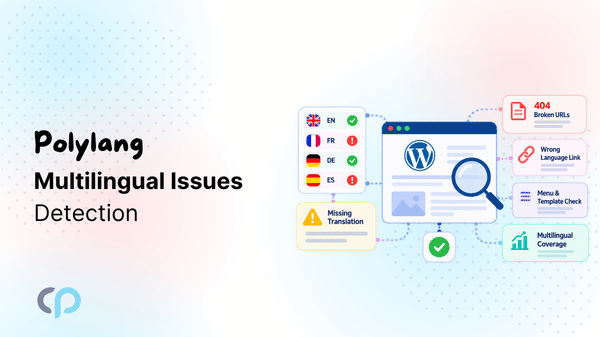
A page may be missing in one language, translated URL may return a 404, an internal link may send French visitors to the English version of a page, a menu may not be assigned correctly, or an Elementor template may not have the right translated version.
The difficult part is that these issues aren’t limited to a single page; they spread across different areas of your website. Checking them manually when your website has dozens of pages and several languages becomes slow and easy to miss.
That is why we built Toolkit for Polylang – Translation Inspector & Duplicate Content.
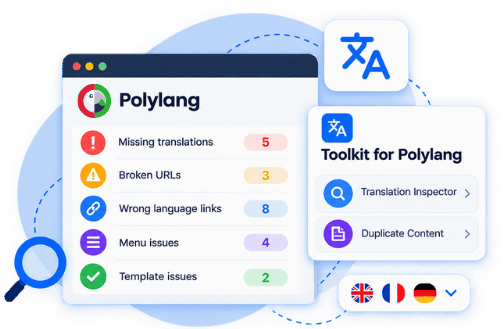
It is an addon for websites already using Polylang, created to help site owners, developers, and agencies review their multilingual setup and identify issues from one place.
The plugin currently includes two main tools:
- Translation Inspector – scans different areas of your multilingual website and highlights potential issues.
- Duplicate Content – lets you copy existing content into another language version before translating it.
The idea is simple: keep using Polylang as usual, while Toolkit for Polylang gives you an extra layer for checking and managing your multilingual website.
What’s Inside Toolkit for Polylang?
Toolkit for Polylang currently includes two tools that solve different parts of the multilingual workflow.
Translation Inspector
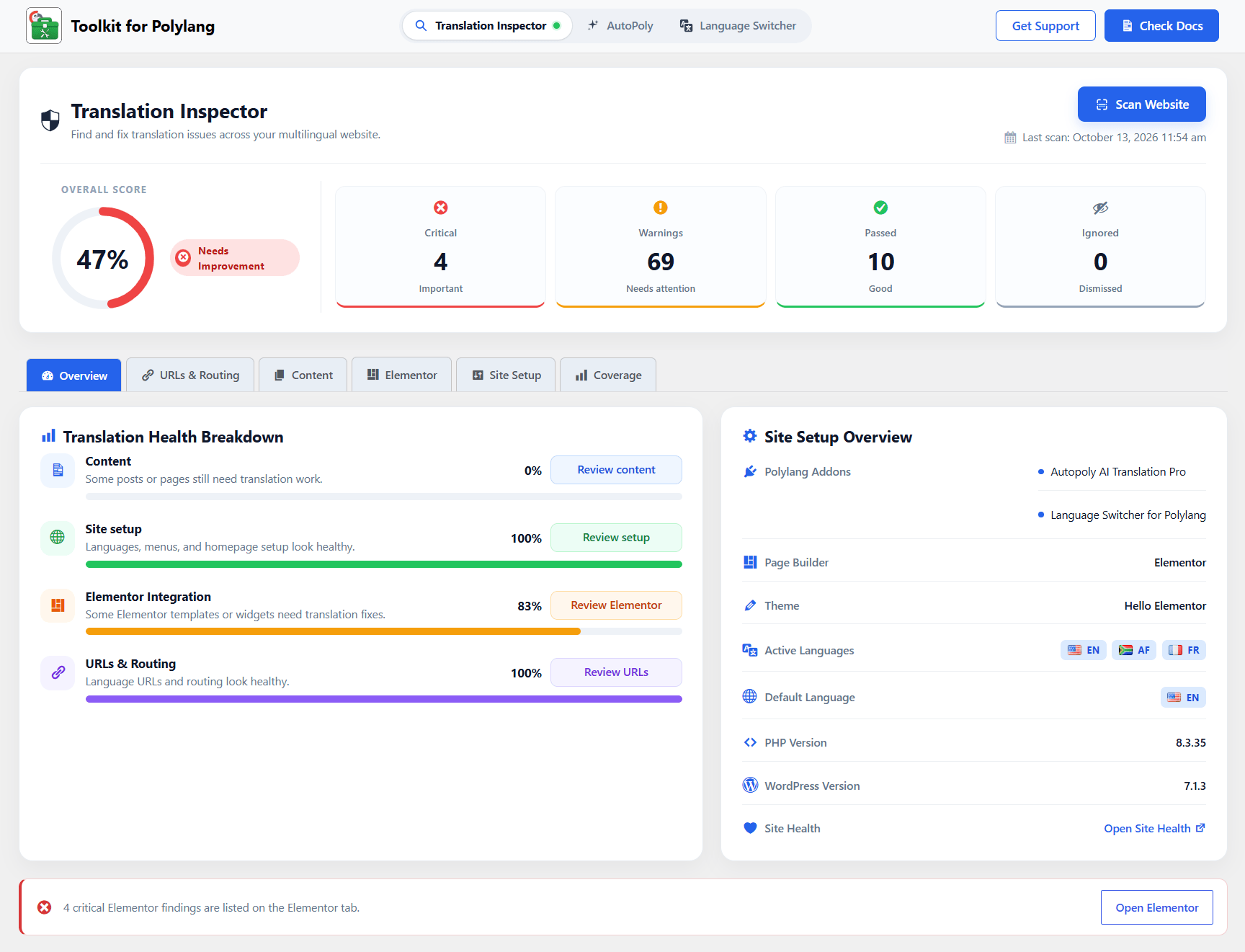
Translation Inspector scans your Polylang website and organizes the results into a structured multilingual health report.
Instead of checking every page, URL, menu, and template manually, you can run a scan and review the findings from one dashboard.
The workflow is straightforward: Scan Website > Review Issues > Fix Problems > Rescan
The report is divided into different areas of your website so you can quickly see where attention is needed.
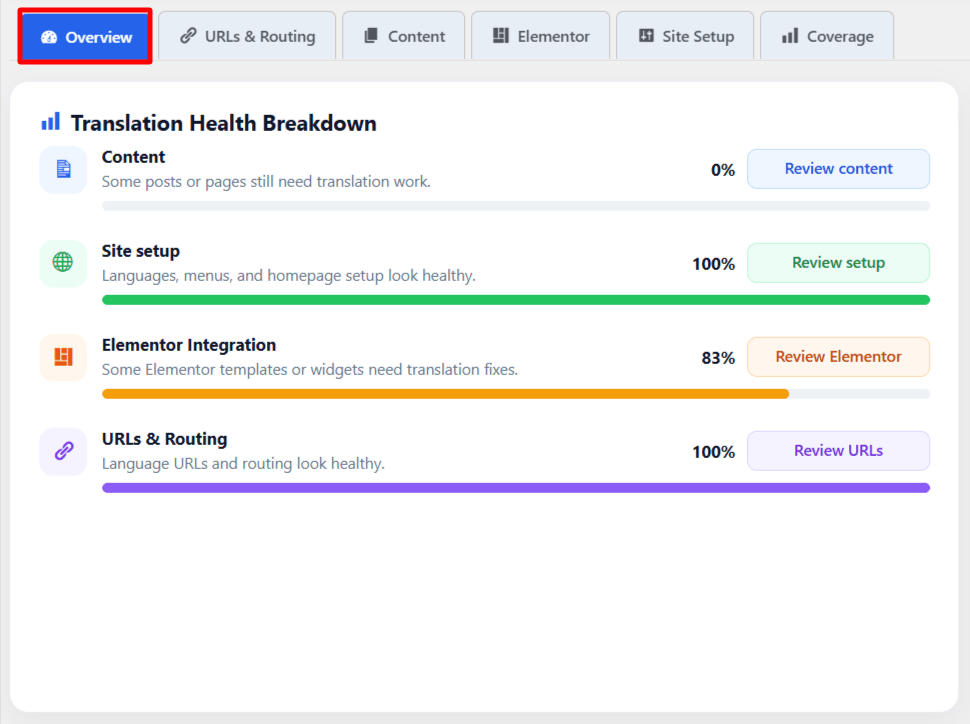
- Overview: The Overview section gives you a quick summary of your latest scan, including the overall health of your multilingual setup and the most important findings.
It is useful when you want to understand the current condition of the site without opening every individual check. - URLs & Routing: This section focuses on how multilingual URLs and language routes behave.
It can help surface problems related to translated permalinks, wrong-language internal links, unavailable destinations, routing issues, and URLs that may lead to 404 pages. - Content: The Content section reviews translation coverage across supported posts, pages, and taxonomies.
It can identify situations such as missing translations, unpublished translations, content that is still identical to the source language, or source content that has changed after a translation was created. - Elementor: For websites built with Elementor, Translation Inspector also includes dedicated checks for multilingual templates.
This can help review supported headers, footers, templates, translated versions, and display conditions. - Site Setup: The Site Setup section checks important parts of the overall multilingual configuration, including language setup, homepage configuration, and other Polylang-related settings that may affect how the site works across languages.
- Coverage: Coverage gives you a broader view of how much content has been translated across your active languages.
This makes it easier to identify which language still has larger translation gaps.
Understand Issues by Severity
Translation Inspector does not simply show every finding in one long list. It also groups results by status so you can decide what to review first.
- Critical – issues that may have a stronger impact on the multilingual experience.
- Warning – items that should be reviewed or may indicate an incomplete setup.
- Passed – checks where no issue was detected.
- Ignored – findings you have intentionally decided not to address.
This makes the report easier to work through, especially on larger websites.
For example, instead of seeing that your website has 15 problems, you can quickly tell whether they are mostly related to content, URLs, Elementor, or site configuration, and which ones should be reviewed first.
Fix, Ignore, and Rescan
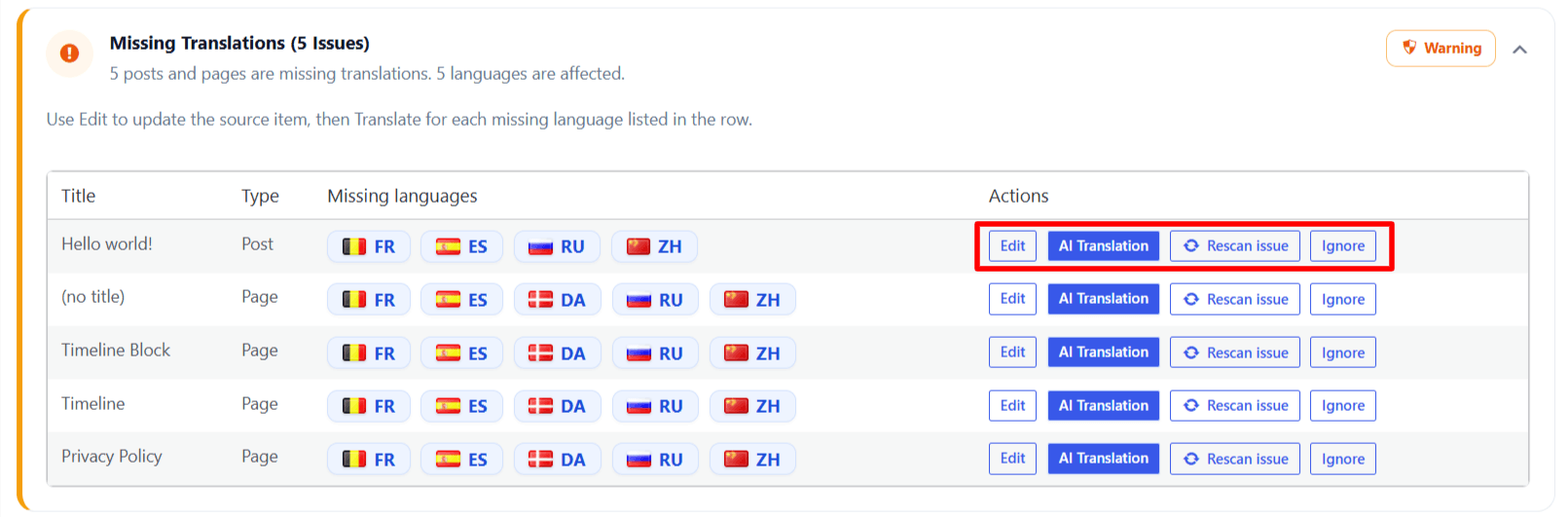
Not every detected difference needs to be treated as a problem.
A product name, brand term, or technical phrase may intentionally remain the same across multiple languages.
For these cases, supported findings can be ignored. After fixing an issue, you can also rescan it to check whether the problem is still being detected.
This creates a practical workflow: Find the issue > Fix it > Rescan > Confirm
That makes Translation Inspector useful not only when setting up a multilingual website, but also during regular maintenance.
Duplicate Content for Polylang
The second tool inside Toolkit for Polylang is Duplicate Content.
When you create a new translation, you may want to start with the structure and content of the original page rather than an empty editor.
Duplicate Content allows you to copy supported content from an existing post or page into another Polylang language version.
This can include the existing page structure, text, media, and supported metadata. You can then use that duplicated version as the starting point for translation.
It is important to note that Duplicate Content does not automatically translate the page. It simply gives you a copy of the original content so you do not have to rebuild everything manually.
Extend Your Polylang Workflow With More Addons
Toolkit for Polylang focuses on inspecting multilingual issues and duplicating content, but you may also need help with translating pages and displaying language switchers.
For these tasks, you can use additional Polylang addons.
AI Translation for Polylang
If you’re regularly publishing content in multiple languages, manually translating every page can become time-consuming.
AutoPoly – AI Translation for Polylang helps automate content translation using supported translation providers. It offers translation workflows for supported content created with Gutenberg, Elementor, and Divi.
This is useful when Translation Inspector shows that several pages are missing their translated versions. With AutoPoly activated you can instantly translate missing page content right from the plugin dashboard.
*Note: AutoPoly is a separate plugin and must be installed to use its translation features.
Language Switcher for Polylang
A language switcher helps visitors move between the available languages of your website.
With Language Switcher for Polylang you can add customizable language switchers directly inside Elementor, Gutenberg, and Divi pages.
Additionally, the addon also provides a floating language switcher that visitors can use from different parts of your website.
*Note: Like AutoPoly, Language Switcher for Polylang is an additional addon rather than a built-in feature of Toolkit for Polylang.
Together, these addons can support different parts of your multilingual workflow: translation, language navigation, and website inspection.
Need help with Toolkit for Polylang?
Find setup guides, feature documentation, troubleshooting tips, and more, all in one place.
Built for Existing Polylang Users
Toolkit for Polylang is not a replacement for Polylang. Polylang continues to manage your languages and translation relationships.
Toolkit simply adds additional tools around that workflow.
So, if you are already comfortable with Polylang, there is no new multilingual platform or separate translation system to learn. You keep using your existing Polylang setup while Toolkit helps you inspect and maintain it more easily.