
In March 2026, a question appeared on Reddit’s r/WordPress that showed how WordPress development is starting to change: “Anyone using Cursor or Claude Code with WordPress in a real way?”
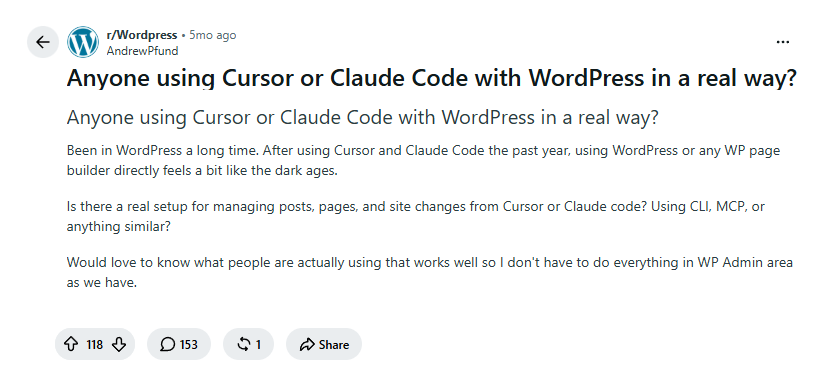
The question was not really about generating a PHP snippet or asking AI to fix a small CSS problem. It was about something much bigger: whether AI coding tools could become part of a genuine WordPress development workflow.
That question is worth exploring because AI-assisted development has moved well beyond autocomplete and simple code generation. Modern coding agents can read project files, create and modify code, run commands, inspect errors and work through multiple iterations.
WordPress is an especially interesting platform for this approach.
A WordPress website might involve a theme, plugins, PHP templates, JavaScript, CSS, database queries, APIs, custom post types, taxonomies and third-party integrations. Changing one part can sometimes affect several others.
So the interesting question is not simply:
Can AI build a WordPress website?
It can.
The better question is:
Can a WordPress website be vibe coded in a way that remains maintainable, secure, fast and ready for real users?
To answer that, it helps to look at the complete process, from understanding the WordPress structure to writing the first prompt, building features, debugging errors, checking security and finally deploying the website.
What Is Vibe Coding?
Vibe coding is a style of software development where natural-language instructions are used to guide AI through much of the coding process.
Instead of manually writing every function, class and stylesheet, a developer describes the desired result and allows an AI coding tool to generate or modify the implementation.
A simplified workflow looks like this:
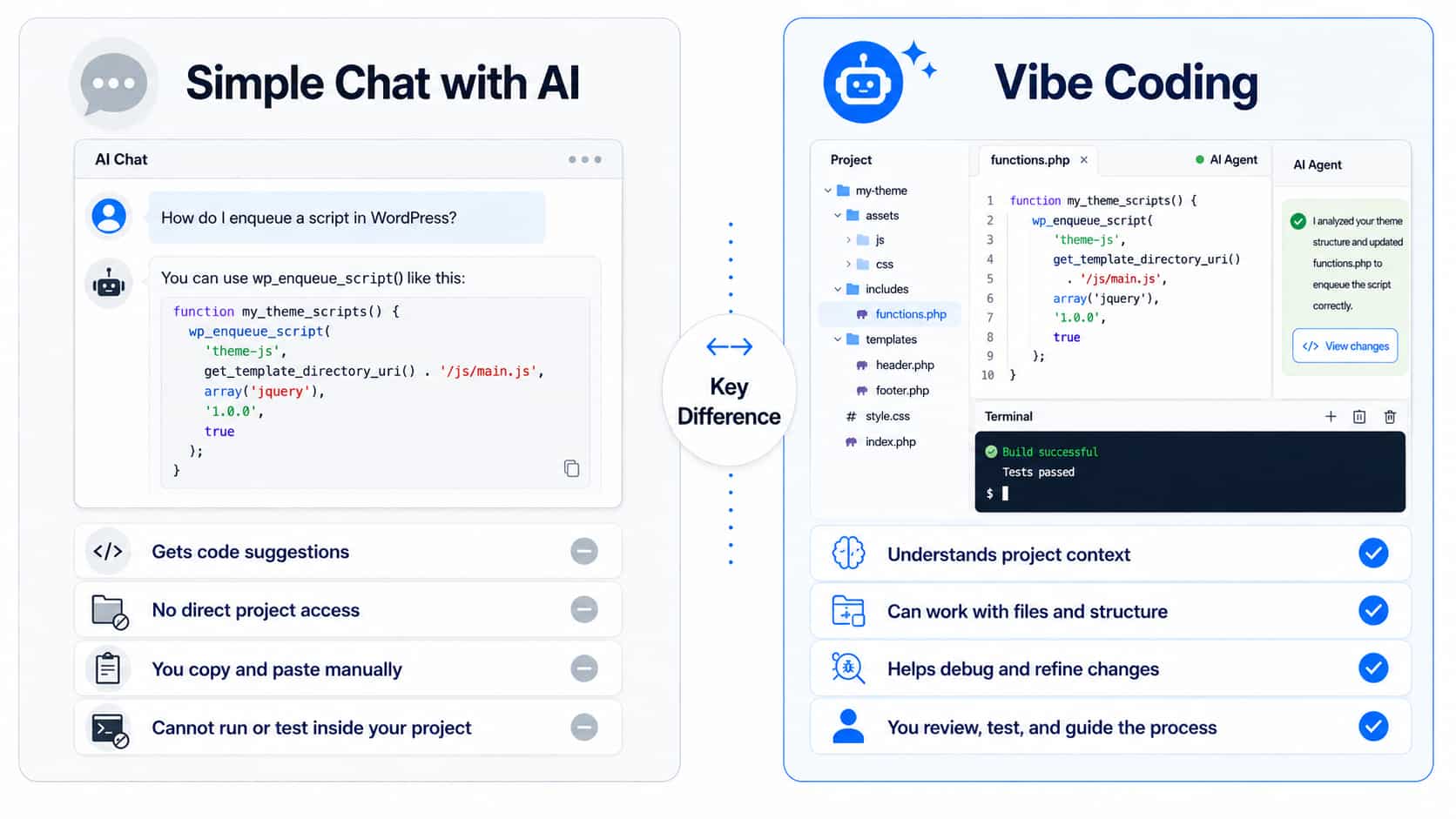
This is different from simply asking an AI chatbot to generate a piece of code.
For example if you ask an AI chatbot:
“Write a WordPress shortcode that displays the latest posts.”
that’s simply AI-assisted coding.
In vibe coding, AI can take over much of the typing, but it doesn’t automatically take over responsibility.
That’s especially important with WordPress. A developer can describe a feature in plain English, let AI generate the code, test the result, and continue refining it through natural-language instructions.
But the developer still needs to understand where the code belongs, why it works, and whether it is safe.
An AI model can produce perfectly valid PHP syntax while still using the wrong hook, misunderstanding the WordPress template hierarchy, creating unnecessary dependencies, or introducing a security problem.
Understanding the WordPress File Structure Before Vibe Coding
This is one of the most important parts of working with AI and WordPress.
An AI coding agent needs access to the project files, but simply giving it access does not mean it knows which file should be changed for a particular requirement.
Understanding the basic WordPress structure makes it much easier to give precise instructions and review the changes it makes.
WordPress Core
A standard WordPress installation contains directories such as:
wordpress/
├── wp-admin/
├── wp-includes/
├── wp-content/
├── wp-config.php
└── index.php
The wp-admin and wp-includes directories contain WordPress’s core functionality.
These files should generally not be edited.
If an AI agent suggests changing something inside wp-admin or wp-includes to customize a website, that should immediately raise a warning.
For most custom development, the most important directory is:
wp-content/ – Where Customizations Usually Live
It contains the themes, plugins, and uploaded media used by the website
wp-content/
│
├── themes/
│   └── your-theme/
│
├── plugins/
│   ├── plugin-one/
│   └── plugin-two/
│
└── uploads/
    ├── 2026/
    └── 2025/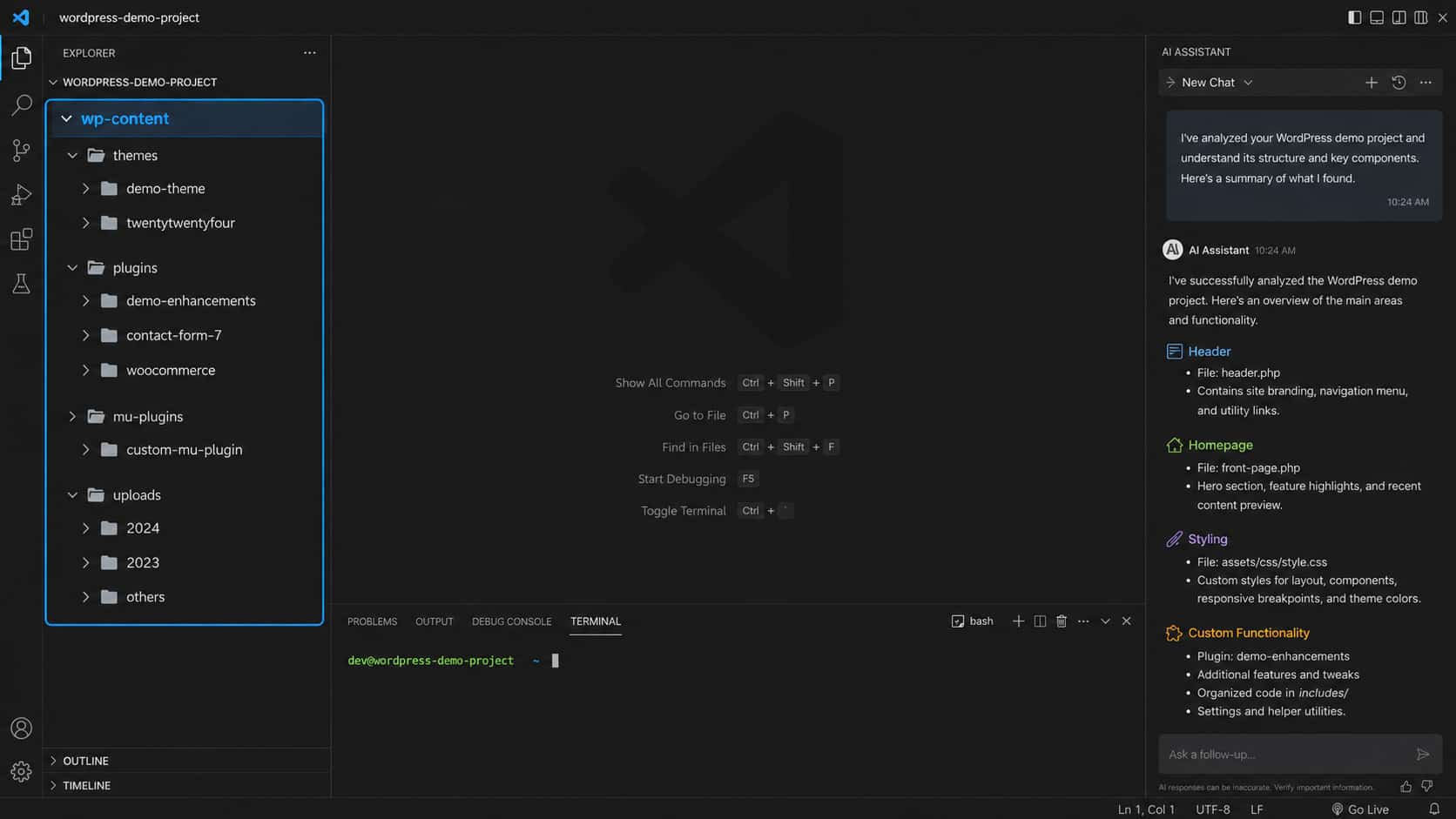
Each folder has a different job.
themes/ – Controls How the Website Looks
The themes directory contains the themes installed on the WordPress website.
A theme is primarily responsible for the presentation and layout of the website.
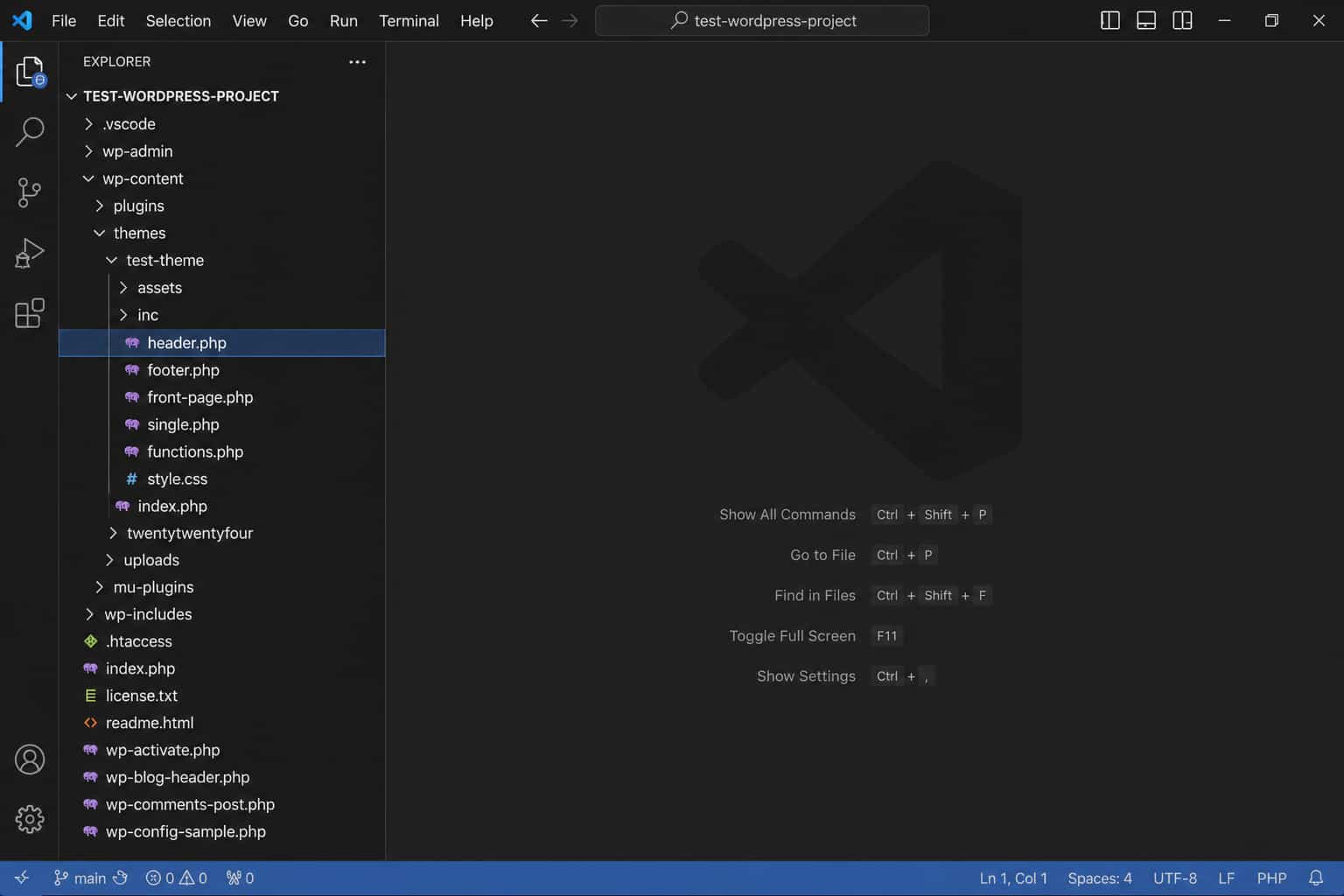
It controls things such as:
- Header
- Footer
- Page layouts
- Blog layouts
- Typography
- Colors
- Navigation
- Templates
- CSS
- Frontend JavaScript
If the request is:
“Change the design of the blog post page.”
The theme is usually the first place to investigate.
plugins/ – Adds Functionality to WordPress
The plugins directory contains WordPress plugins.
For example:
wp-content/
└── plugins/
    ├── contact-form-plugin/
    ├── seo-plugin/
    └── custom-plugin/
Plugins are generally used to add functionality rather than control the overall appearance of the website.
Examples include:
- Contact forms
- WooCommerce functionality
- Custom post types
- Payment integrations
- CRM integrations
- API connections
- Custom admin features
- Additional WordPress features
For example, if the requirement is:
“Create a custom integration that sends form submissions to a CRM.”
That functionality would generally belong in a plugin rather than directly inside the theme.
uploads/ – Stores Media Files
The uploads directory contains files uploaded through the WordPress Media Library.
This can include:
- Images
- PDFs
- Videos
- Documents
- Other uploaded media
This folder is not normally where website functionality or design code should be written.
So, when vibe coding a WordPress website, the two most important areas to understand are:
wp-content/
│
├── themes/   → Website presentation
│
└── plugins/  → Website functionality
So, Which File Should the AI Edit?
Once you understand what each part of wp-content is responsible for, the next question is: where should a particular change actually be made?
| What You Want to Change | File(s) to Edit |
| Website colors, spacing, typography | style.css / Theme CSS (or theme.json for block themes) |
| Fonts (headings, body text) | theme.json (block themes) or functions.php font enqueue (classic themes) |
| Layout of a specific page (e.g., homepage) | front-page.php or page-{slug}.php (falls back to page.php) |
| Header design/structure | header.php (classic) or parts/header.html (block theme) |
| Footer design/structure | footer.php or parts/footer.html |
| Blog post layout | single.php |
| Archive/category page layout | archive.php or category.php |
| Adding new functionality (shortcodes, custom logic) | functions.php or a custom plugin file |
| Custom Post Types & fields | functions.php (register_post_type()) or dedicated plugin/ACF config |
| Widget areas / sidebars | functions.php (registration) + sidebar.php (display) |
| Navigation menu behavior | header.php + functions.php (register_nav_menus()) |
| Plugin-specific settings/UI | Plugin’s own admin PHP file (e.g., admin/settings.php) |
| Site-wide JS behavior (animations, interactions) | script.js, enqueued via functions.php |
| Responsive/mobile-specific styling | Same theme CSS file, inside @media queries |
| Database queries / custom data display | functions.php or a custom plugin using $wpdb / WP_Query |
| Global site settings (site title, URL structure) | WordPress Admin → Settings (not a file) |
| Child theme overrides | Child theme’s style.css / functions.php |
Set Up Your WordPress Vibe Coding Environment
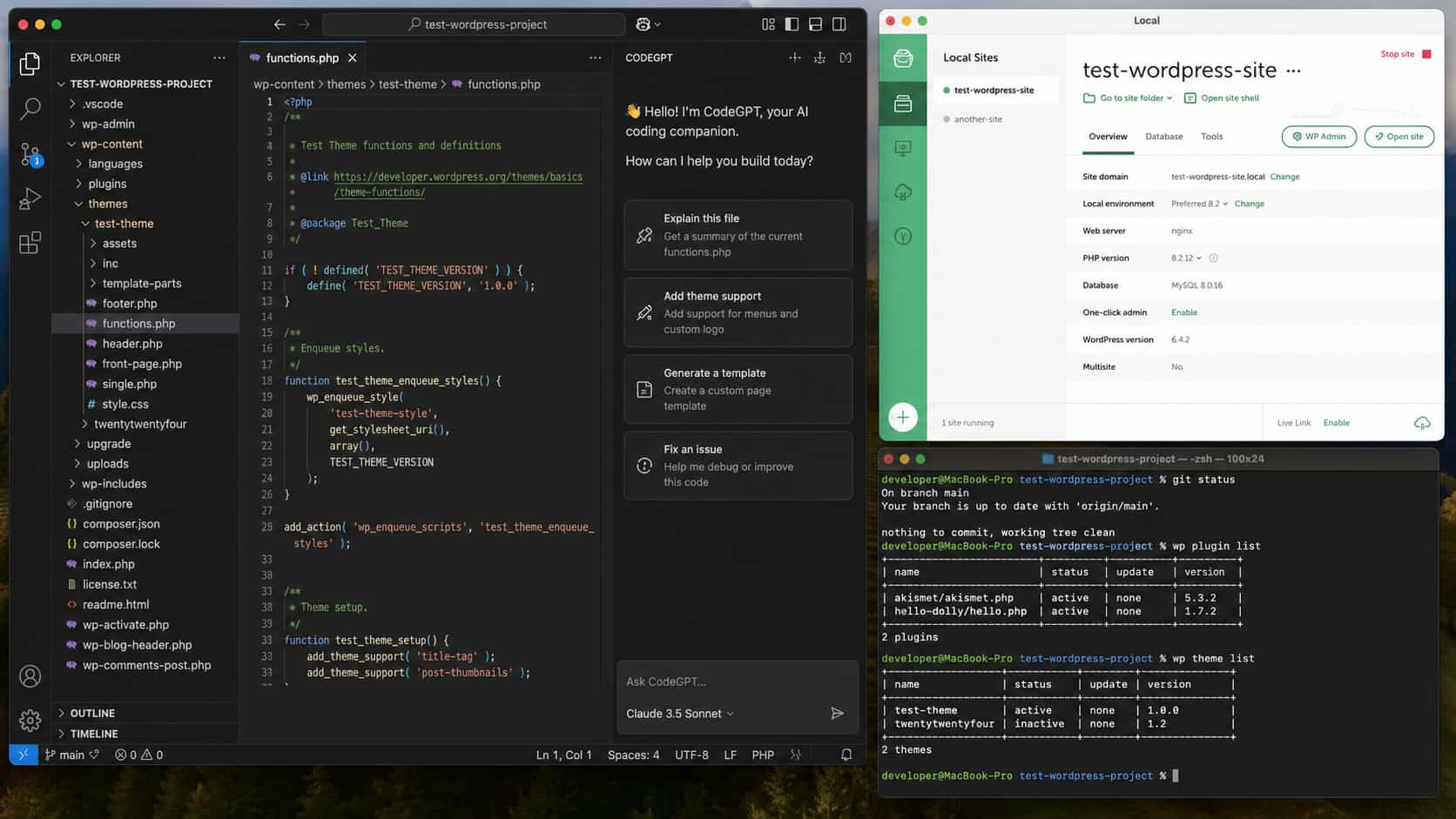
Before writing your first prompt, you need a place where AI can safely work on your WordPress project. This is your development environment, the setup where you build, test and change the website before it goes live.
1. A code editor
This is just the program where the project’s files live and where you (and the AI tool) can open, read and edit them. VS Code is the most common free option. Cursor is basically VS Code with AI built directly in.
2. An AI coding tool (“agent”)
This is different from chatting with an AI in a browser tab. A chat window can only talk to you, it can’t see your files or run commands. An AI coding agent (Claude Code, Cursor, etc.) sits inside your code editor or terminal, can open your project’s files, make edits directly, and run commands for you. This is what actually lets it “build” something instead of just describing it.
3. A local WordPress environment
“Local” just means a full copy of WordPress running on your own computer instead of on the internet. Nobody else can see it, nothing you break there affects a real website, and it doesn’t need a domain or hosting.
4. Git
Git is version control, it keeps a history of every change made to your project, so you can always undo something and go back to a point before it broke. You don’t need to be a Git expert. You mainly need to know two things: save a “commit” (a checkpoint) before a big change, and know how to roll back to a previous commit if things go wrong.
5. (Optional but useful) WP-CLI
This lets you manage WordPress from the command line instead of clicking through the admin dashboard, listing plugins, checking themes, creating posts, etc. Not required to get started, but it becomes useful once your AI tool starts interacting with WordPress more directly.
Practical Tips for Vibe Coding WordPress
Don’t Start With the Live Website
Never point an AI coding agent directly at your production site. Start with a local WordPress environment, use Git to track changes, and move changes through testing and staging before production. This gives you a safe place to experiment and roll back mistakes.
Before Coding, Give AI Context
Don’t start with a vague prompt like “Build me a WordPress website.” Give AI the project goal, pages, requirements, technical constraints, and existing architecture. You can also keep these rules in a PROJECT.md or AGENTS.md file so the AI has consistent instructions.
Build the Website One Feature at a Time
Avoid asking AI to build the entire website in one prompt. Start with the theme structure, then build the header, homepage, WordPress functionality, and other features separately. Test and commit each feature before moving to the next one.
Prefer a Tested Plugin Over a Custom Build
Before asking AI to build a feature from scratch, check whether a well-maintained plugin already does it. Contact forms, SEO, custom post types, timelines, popups, these are solved problems, and an established plugin has already been through security audits, edge-case bug fixes, and real-world testing that a freshly AI-generated feature hasn’t.
Give AI Evidence When Debugging
Don’t just tell AI that something is broken. Give it the actual error, relevant logs, the file you changed, and what happened after the change. For WordPress issues, wp-content/debug.log, the browser console, and the Network tab can provide useful evidence.
Ask for the Smallest Safe Fix
When something breaks, don’t immediately ask AI to rewrite the whole file. Ask it to identify the likely cause, explain the problem, and suggest the smallest change that can fix it. Then test the result before continuing.
Review WordPress-Specific Code
AI can generate valid PHP that still uses WordPress incorrectly. Pay particular attention to hooks, filters, database queries, permissions, APIs, and template-related code. You don’t need to write everything manually, but you should understand enough WordPress to review what AI produces.
Don’t Let AI Guess
Whenever possible, give AI the actual project files, documentation, error messages, configuration, and requirements it needs. The more relevant context it has, the less it needs to guess about your project.
Commit Before Major AI Changes
Before asking AI to make a significant change, create a Git commit. If an AI-generated change causes problems across multiple files, you have a clean point to return to.
Test Outside the AI Conversation
Don’t treat AI’s response as proof that the feature works. Test the actual website in the browser, check WordPress logs, and use tools such as Lighthouse when appropriate. The running website—not the AI’s explanation, is the source of truth.
How to Write Better Prompts for WordPress Vibe Coding
A common mistake when vibe coding is giving AI a short instruction that describes only the desired result.
For example:
“Fix the header.”
The AI has no idea what “fix” means, which header is being referred to, what is currently wrong, or what should remain unchanged.
A better prompt gives the AI context, the specific goal, constraints, and a clear expected result.
Most good WordPress prompts can follow a simple structure:
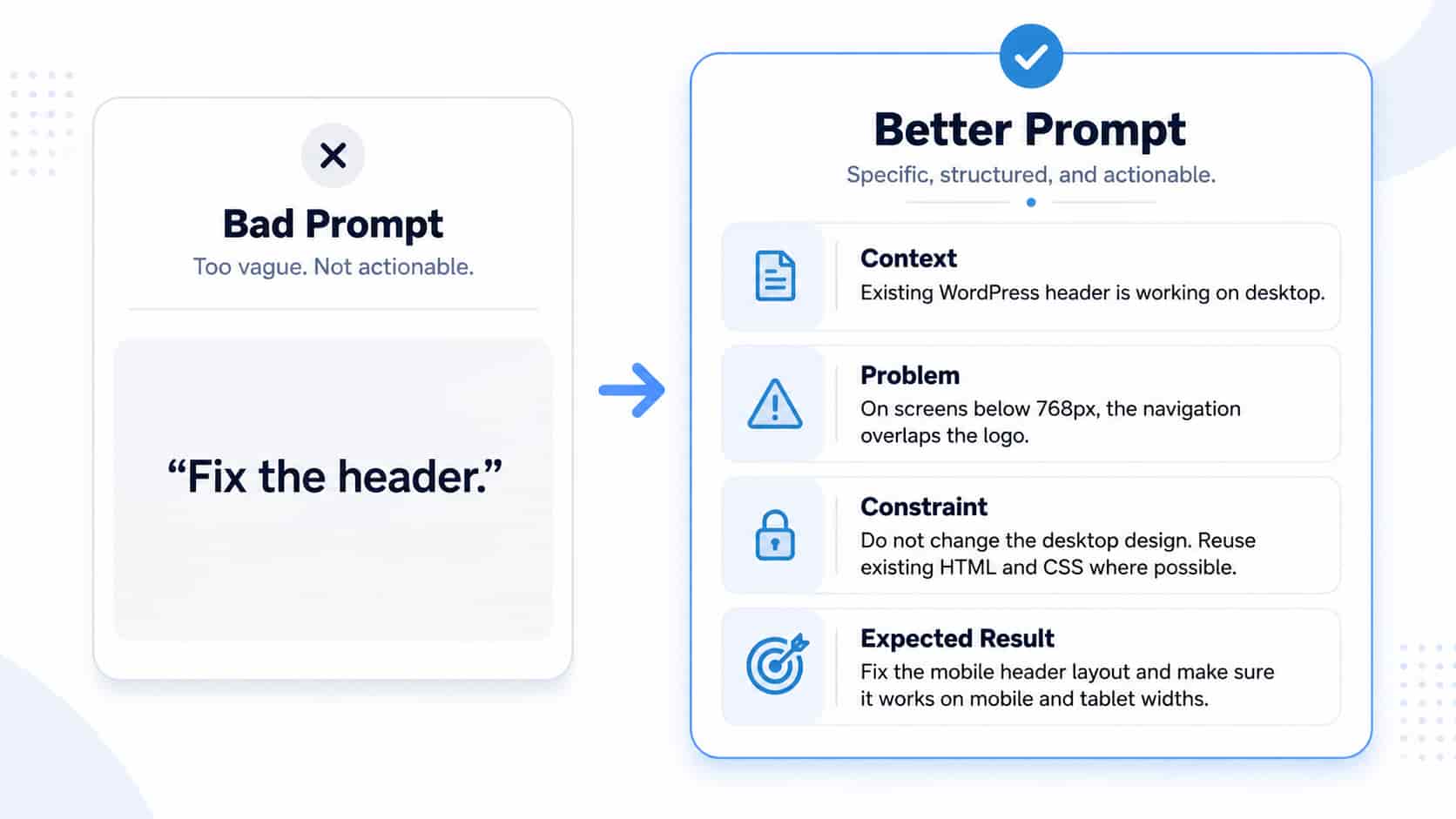
This approach gives the AI enough information to understand the project before changing it.
The following examples show the difference.
| Common prompt to avoid | Better prompt to use |
| “Make the header responsive.” | “Inspect the existing WordPress header. The desktop version is working correctly, but the navigation overlaps the logo on screens below 768px. Fix the mobile layout without changing the desktop design. Reuse the existing HTML and CSS where possible, and test the header at mobile and tablet widths.” |
| “Make the homepage look better.” | “Review the current homepage and improve its visual hierarchy without changing the existing brand colors or content. Focus on spacing, typography, section alignment, buttons, and mobile responsiveness. First identify the files controlling the homepage and explain the proposed changes before editing them.” |
| “Fix the PHP error.” | “The homepage is returning a 500 error after the latest change to functions.php. The error from wp-content/debug.log is: [paste error]. Identify the exact cause, explain it, and make the smallest possible fix. Do not rewrite unrelated parts of the file.” |
| “Make the website faster.” | “Audit the homepage for performance problems. Check image sizes, CSS, JavaScript, fonts, third-party scripts, and unnecessary dependencies. Do not make changes yet. First list the five highest-impact issues and identify which files or components are responsible.” |
| “Add a dark mode.” | “Add a light/dark mode toggle to the existing WordPress theme. Reuse the current color variables where possible, save the user’s preference, support keyboard interaction, and avoid adding an external library. Keep the existing light theme unchanged when dark mode is disabled.” |
The goal is not to write the longest possible prompt. A good prompt is simply specific enough that the AI does not have to guess.
Conclusion
Vibe coding can make WordPress development faster and easier, especially when AI can work directly with your project files. But the goal is not to let AI build everything from scratch, rely on trusted plugins for major features. You still need to understand your WordPress setup, give clear instructions, test each change, and review the code before it goes live.
With a local development environment, Git, proven plugins, and clear prompts, AI can become a useful part of your WordPress workflow. The more context and direction you give it, the better the results you can expect.
Frequently Asked Questions
What is vibe coding in WordPress?
Vibe coding in WordPress means using natural-language instructions to guide an AI coding tool to build, change, or fix website code. Instead of writing every line yourself, you describe what you want, let the AI generate the code, and then review and test the result.
Do I need to know how to code to vibe code a WordPress website?
You don’t need to be an expert coder to get started with WordPress vibe coding. However, you should understand the basics of WordPress so you can check where the AI adds code, review its changes, and spot potential problems. For example, you should know the difference between a theme, plugin, and WordPress core files.
What’s the difference between vibe coding and asking ChatGPT for a code snippet?
When you ask ChatGPT for a code snippet, you usually copy the code and add it to your project yourself. An AI coding agent such as Cursor or Claude Code can work directly with your project files, make changes, run commands, and help fix errors. This makes AI coding agents more suitable for a complete WordPress vibe coding workflow.
Is it safe to let an AI coding agent edit a live WordPress website?
No. It is better to use a local WordPress development environment first, then test the changes on a staging website before moving them to production. You should also use Git to keep track of changes. This gives you a safer way to test AI-generated code and roll back changes if something goes wrong.
What should I do if AI breaks my WordPress website?
Stop making more changes and first find out what caused the problem. Check the WordPress debug.log, review the changes made by the AI, and use your latest Git commit or website backup if available. Once the problem is fixed, create a Git commit before asking the AI to make another major change.
Can AI mess up a WordPress website even if the code looks correct?
Yes. AI can write code that is technically valid but still wrong for your WordPress website. For example, it may use the wrong WordPress hook, edit the wrong file, create duplicate functionality, or introduce a security problem. Always test and review AI-generated code before using it on a production website.
Can vibe coding work with Elementor or WooCommerce?
Yes. AI coding tools can help you add custom functionality to Elementor and WooCommerce using PHP, JavaScript, CSS, hooks, filters, and APIs. However, AI does not automatically understand or edit everything inside visual builders or WordPress settings. For those changes, you may still need to use the WordPress or Elementor interface.
What is the biggest risk of WordPress vibe coding?
The biggest risk is using AI-generated code without reviewing and testing it. Small problems can build up over time and cause security, performance, or compatibility issues. The safest approach is to make one change at a time, test it, review the code, and keep a Git commit before major changes.