
Introduction: Why Your WordPress Site Needs Protection Right Now
Your WordPress website is under attack. Right now. Even as you read this.
Here’s the scary part: the average WordPress site faces multiple attack attempts every single day. And if your site isn’t protected? There’s a high chance that if you get hacked, it’s because you didn’t maintain your security properly.
But here’s the good news: you don’t need to spend money on expensive security tools.
In this guide, you’ll discover the 7 best free WordPress security plugins. They’re trusted by thousands of WordPress website owners and offer strong protection without costing anything.
Why does security matter so much? Because the threats are smarter than ever. We’re seeing more vulnerabilities than we did just a year ago. And now, attackers are using AI to find weaknesses faster than humans can fix them. That’s why you need AI-powered defense on your side.
Let me show you how to protect your site.
What Makes a Good Free WordPress Security Plugin?
Before we dive into the 7 best security plugins, let’s talk about what actually matters.
Not all security plugins are created equal. Some are bloated and slow down your site. Others don’t do much of anything. You need to know what to look for so you get real protection, not just a false sense of security.
Real-Time Threat Detection
A good security plugin watches your site 24/7. It doesn’t wait for a problem, it spots suspicious behavior in real time and stops it. Think of it like having a security guard that never sleeps.
Automated Malware Scanning
Malware is dangerous because it hides. A good plugin scans your site regularly and automatically, looking for malicious code that bad actors try to sneak in. It should run in the background so you don’t have to remember to do it.
Firewall Protection
A firewall is like a bouncer at a nightclub. It checks everyone who tries to enter and only lets the good visitors through. The bots trying to hack you, get blocked at the door.
Login Protection & Two-Factor Authentication
Hackers love attacking the login page. A good plugin adds extra protection here. Two-factor authentication (2FA) means attackers need your password AND a code from your phone to get in. It’s like a house with two locks instead of one.
Activity Logging & Audit Trails
You should know what’s happening on your site. A good plugin keeps a detailed log of who logged in, what they changed, and when. If something bad happens, you can see exactly what went wrong.
Regular Updates & Community Support
Security isn’t a one-time thing. New threats pop up constantly, so your plugin needs regular updates. And you need to know that the people behind it are actually maintaining it.
The 7 Best Free WordPress Security Plugins
Here are the seven free security plugins that will actually protect your site. I’m ranking them based on real-world performance, ease of use, and how much protection they give you.
1. Wordfence

What it is: Think of Wordfence as the heavyweight champion of free WordPress security. It’s been around for years, millions of websites trust it, and it keeps getting better.
Why it’s amazing:
- Real-time protection against brute force attacks (where hackers try thousands of password combinations)
- Threat intelligence network that learns from millions of WordPress sites
- Firewall that blocks attackers at the edge
- Detailed login reports so you know who’s accessing your site
- Free version is genuinely powerful (paid version adds more, but free is solid)
Best for: Bloggers, small businesses, and anyone serious about security. If you only install one plugin, install this one.
Pros:
- Free version is incredibly capable
- Regular updates address new threats
- Clean, easy-to-use interface
- Excellent threat intelligence
Cons:
- Can be resource-heavy on very small hosting
- Premium version offers more, which might tempt you to upgrade
- Learning curve (but worth it)
Get Wordfence: Download from WordPress.org
2. Kadence Security (formerly iThemes Security)
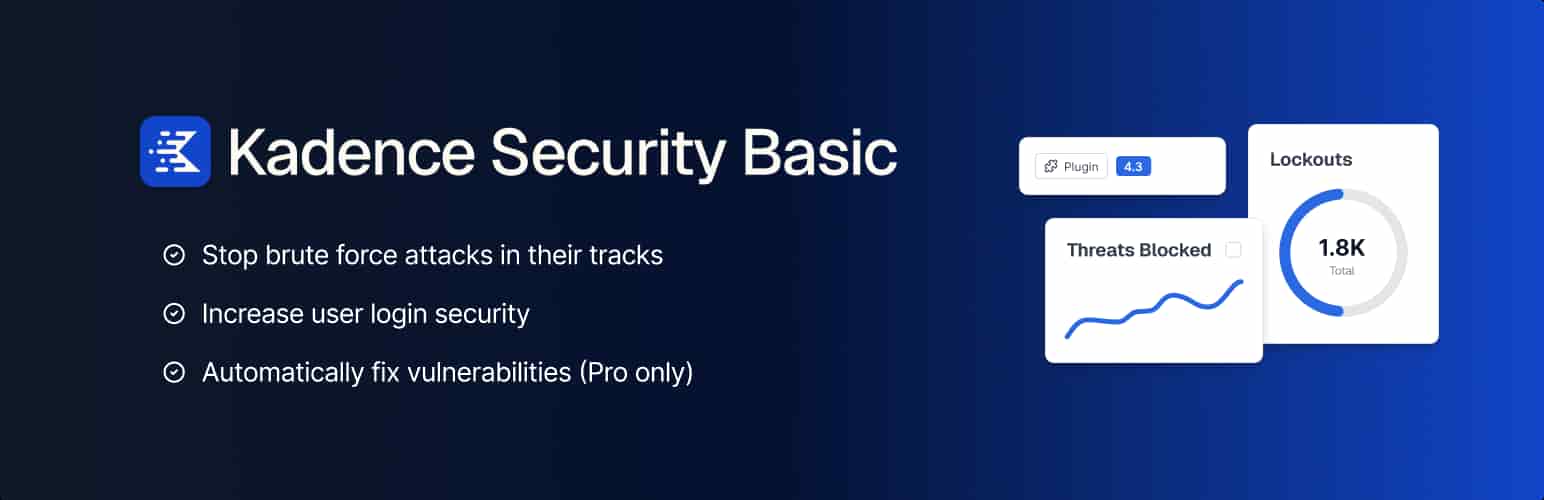
What it is: Kadence Security is the locksmith who hardens your entire building. It doesn’t just catch attacks, it prevents them by fixing weak spots in your WordPress setup.
Why it’s amazing:
- Hardens your WordPress installation by hiding version numbers and removing dangerous file access
- Two-factor authentication that adds an extra layer to logins
- Monitors file changes so you know immediately if malware changes something
- Strong password enforcement
- Google Authenticator support for 2FA
- Works great on shared hosting (doesn’t need much server power)
How it helps: Kadence Security fixes the basic setup mistakes that make WordPress vulnerable. Most sites are hacked not because of complicated exploits, but because they had weak passwords, old versions showing, and files left wide open. This plugin fixes all that.
Best for: People who want to eliminate the “easy to hack” vulnerabilities. Great for WordPress beginners who want comprehensive protection without complexity.
Pros:
- Focuses on hardening, not just monitoring
- Easy to set up even for non-technical people
- Good documentation
- Lightweight with minimal performance impact.
Cons:
- Doesn’t do external firewall protection
- Free version has basic features (paid is comprehensive)
Get Kadence Security: Download from WordPress.org
3. All in One WP Security & Firewall
What it is: The simplest security plugin to understand and use. If you’re new to WordPress security, this is your best friend.
Why it’s amazing:
- Super beginner-friendly with a “Security Strength Meter” that shows your security score
- Firewall that blocks bad traffic before it reaches your site
- Database backup functionality
- Brute force attack protection
- User login monitoring
- Google reCAPTCHA integration to stop bot attacks
How it helps: This plugin explains everything in plain language. It won’t confuse you with technical jargon. You see your security score and know exactly what needs fixing.
Best for: Brand new WordPress users who want straightforward protection without overwhelming options.
Pros:
- Easiest to understand and configure
- Great community support
- Lightweight (won’t slow your site)
- Good documentation for beginners
Cons:
- Less powerful than Wordfence or Kadence Security
- Firewall is basic compared to enterprise solutions
Get All in One WP Security: Download from WordPress.org
4. WPScan
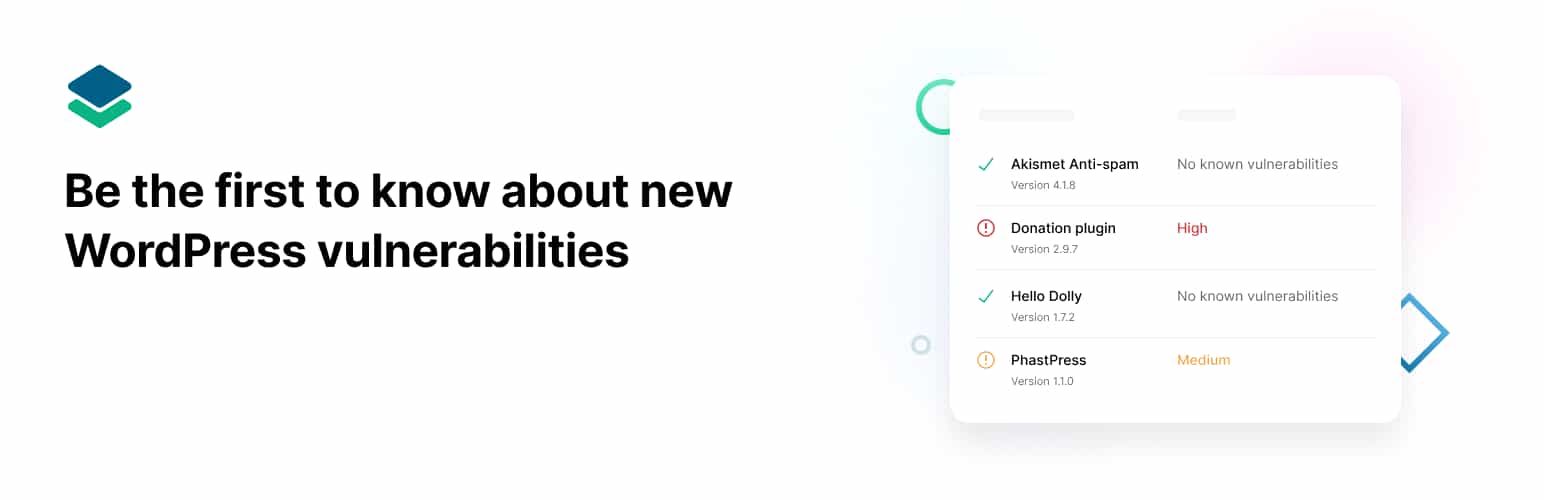
What it is: WPScan is like having a professional security auditor run scans on your site automatically. It’s built specifically to find WordPress vulnerabilities.
Why it’s amazing:
- Scans your installed plugins and themes against a huge database of known issues
- Checks for outdated versions that have known security holes
- User enumeration prevention (stops hackers from guessing usernames)
- Email alerts for vulnerabilities
- Free plan includes core scanning functionality
Best for: Anyone running multiple plugins who wants automated vulnerability scanning. Great for WordPress agencies managing multiple sites.
Pros:
- Specifically built for WordPress (understands WordPress better than generic tools)
- Comprehensive plugin/theme database
- Good free tier
Cons:
- Doesn’t include active protection (just scanning)
- Needs pairing with another plugin for firewall
- Premium features unlock more value
Get WPScan: Download from WordPress.org
5. Sucuri Security – Real-Time Malware Detection
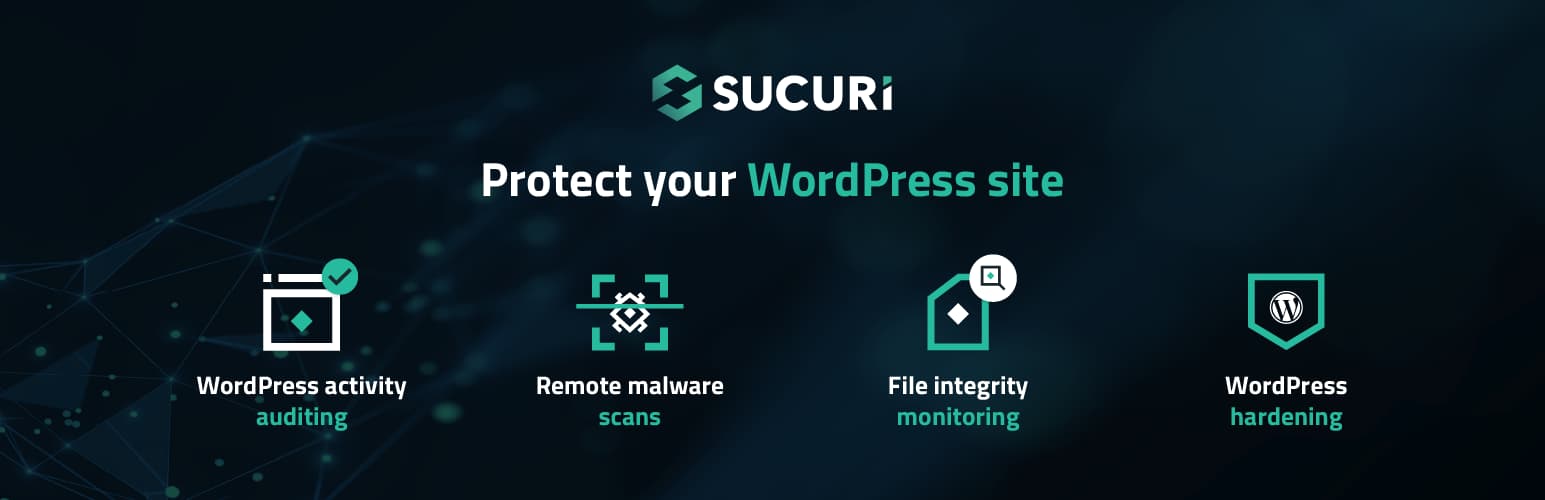
What it is: Sucuri specializes in one thing: catching malware and removing it. It’s the specialist you call when things get serious.
Why it’s amazing:
- Real-time malware detection and monitoring
- Checks if your site is blacklisted by major services
- Website firewall protection
- Malware scanning and cleanup guidance
- Security auditing and integrity checking
- Detects backdoors and suspicious files
- Integration with Sucuri’s threat intelligence network
How it helps: Sucuri’s malware detection is powered by years of experience removing malware from hacked sites. They know what to look for.
Best for: Sites that have been hacked before or want specialized malware protection. Also good for ecommerce sites.
Pros:
- Best malware detection available
- Can catch zero-day malware
- Blacklist monitoring is valuable
- Fast alerts when issues detected
Cons:
- Free version is more limited than others
- Paid firewall is separate (not included in free plugin)
- Focuses on malware (doesn’t harden WordPress as much)
Get Sucuri Security: Download from WordPress.org
6. Jetpack Security – Automated Protection Layer
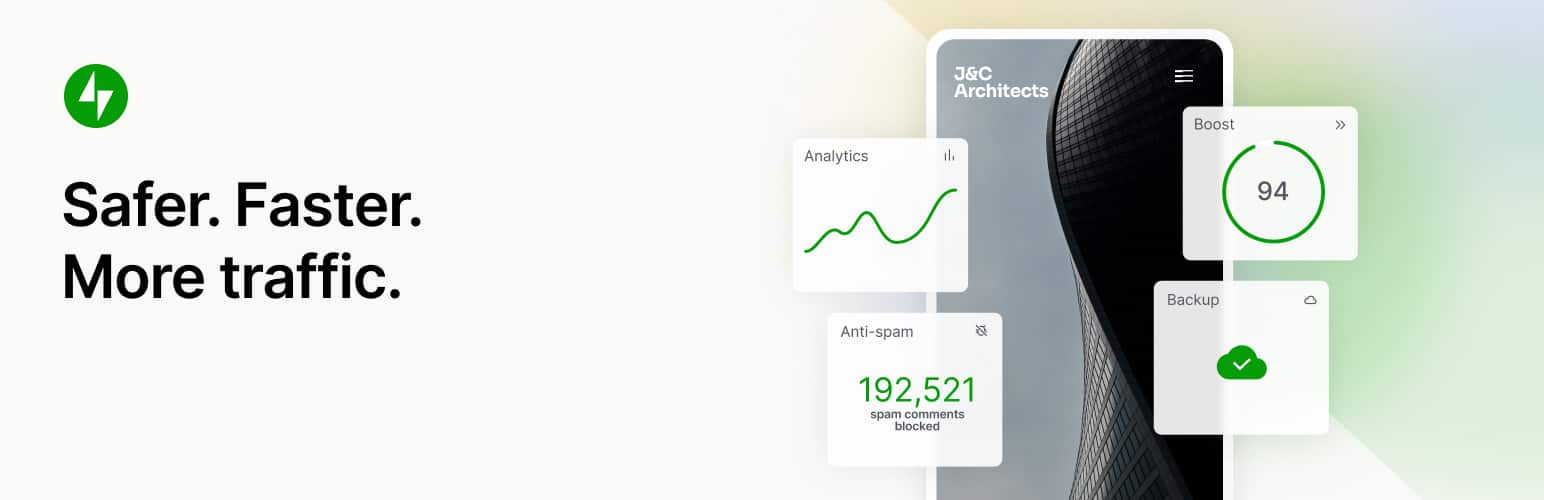
What it is: Jetpack is made by Automattic (the company behind WordPress.com) and brings cloud-based protection to your self-hosted WordPress site.
Why it’s amazing:
- Brute force attack protection powered by WordPress.com’s network
- Downtime monitoring (alerts you if your site goes offline)
- Malware scanning
- Spam protection for comments
- Backup functionality
- Automatic updates for plugins and themes
- Login protection without slowing down your site
How it helps: Jetpack uses centralized threat intelligence. When WordPress.com’s network spots an attack pattern, every Jetpack user gets protected immediately.
Best for: People who want simple, automated protection they can set and forget. Works great alongside other plugins.
Pros:
- Very easy to set up
- Minimal configuration needed
- Good backup integration
- Powered by WordPress.com’s resources
Cons:
- Requires a Jetpack.com account
- Free version more limited than others
- Some features are paid-only
- Not as detailed as Wordfence
Get Jetpack Security: Download from WordPress.org
7. WP Activity Log – Security Monitoring & Compliance
What it is: If you need to know exactly what’s happening on your WordPress site at all times, WP Activity Log is your answer. It’s the detailed record-keeper of your site.
Why it’s amazing:
- Logs every action on your site (logins, posts, plugin changes, everything)
- Detailed audit trail for compliance (useful if you need to prove security for clients)
- User activity monitoring
- Email alerts for suspicious changes
- Search and filter logs easily
- Integrations with slack and other tools
How it helps: With detailed logs, you can see exactly when something went wrong. If you ever get hacked, you’ll know the exact moment and can see what the hacker changed. This is invaluable for recovery.
Best for: Agencies managing client sites, anyone who needs detailed compliance records, and sites that handle sensitive data.
Pros:
- Most detailed activity logging
- Great for compliance requirements
- Easy to search logs
- Lightweight despite detailed tracking
Cons:
- Doesn’t prevent attacks (only documents them)
- Requires storage for logs
- Paid version offers more features
- Needs pairing with protective plugins
Get WP Activity Log: Download from WordPress.org
Quick Comparison: Free WordPress Security Plugins at a Glance
| Plugin | Malware Scanning | Firewall | 2FA Support | Firewall Learning Mode | Best For |
| Wordfence | ✅ Advanced | ✅ Yes | ✅ Yes | ✅ Yes | All-around protection |
| Kadence Security | ✅ Basic | ✅ Yes | ✅ Yes | ❌ No | Hardening & beginners |
| All in One WP Security | ✅ Basic | ✅ Yes | ❌ Limited | ❌ No | Brand new users |
| WPScan | ✅ Vulnerability Focus | ❌ No | ❌ No | ❌ No | Plugin vulnerability detection |
| Sucuri Security | ✅ Advanced Malware | ✅ Separate | ❌ No | ❌ No | Malware specialists |
| Jetpack Security | ✅ Basic | ✅ Cloud-based | ✅ Yes | ❌ No | Easy automation |
| WP Activity Log | ❌ Monitoring Only | ❌ No | ❌ No | ❌ No | Compliance & logging |
7 Critical Mistakes That Leave Your WordPress Site Vulnerable
Let me show you what NOT to do. These are the mistakes that lead to hacks:
Mistake 1: Not Updating Plugins & Themes
This is the #1 reason sites get hacked. Every plugin or theme that gets outdated is a potential entry point.
Fix: Enable automatic updates in WordPress dashboard.
Mistake 2: Using Weak Passwords
“password123” or “wordpress” are hackers’ best friends.
Fix: Use a password manager and create strong passwords (mix of uppercase, lowercase, numbers, symbols).
Mistake 3: Installing Too Many Plugins
Every plugin is another piece of code running on your site. More plugins = more vulnerability points.
Fix: Only install plugins you actually need. Delete unused ones.
Mistake 4: Running an Outdated WordPress Version
WordPress 7.0.2 just came out specifically to patch serious vulnerabilities. If you’re on an old version, you’re open to attack.
Fix: Update WordPress immediately (it’s usually one click).
Mistake 5: No Backup System
If you get hacked and have no backup, you’re in serious trouble.
Fix: Set up automated daily or weekly backups through your host or plugin.
Mistake 6: Ignoring Security Alerts
When your security plugin or hosting sends an alert, pay attention. It’s telling you something is wrong.
Fix: Check alerts immediately. Take action. Don’t ignore them.
Mistake 7: Relying Only on a Plugin (No External Firewall)
A security plugin is great, but it’s just one layer. Serious attacks need to be blocked before they reach your site.
Fix: Pair your plugin with an external firewall like Cloudflare (free tier available).
Frequently Asked Questions About Free WordPress Security Plugins
Do free WordPress security plugins really work?”
Yes, absolutely. The free versions of Wordfence, Solid Security, and the others block thousands of attacks every day. You don’t need to pay money for basic protection.
That said, paid versions add nice extras. But free versions give you solid protection.
Can I use multiple security plugins at once?
Not recommended. Two security plugins running simultaneously can conflict with each other and slow your site way down.
Better approach: Pick one security plugin (like Wordfence) and pair it with WP Activity Log for logging. That combination works great without conflicts.
How often should I scan my WordPress site?
Daily for high-traffic sites, weekly for small sites.
Set it to automatic so you don’t have to remember. Most plugins can scan in the background without affecting visitors.
What’s the difference between a plugin and a firewall?
Plugin: Protects inside WordPress. Monitors logins, scans for malware, checks file integrity.
Firewall: Protects at the edge, before traffic reaches your site. Blocks bots, stops DDoS attacks, filters malicious requests.
Best practice: Use both. They protect different things.
How do I know if my site has been hacked?
Warning signs:
– Sudden traffic spike from unknown countries
– Google warns you about malware
– Visitors see strange ads
– Your admin access stops working
– New admin users you didn’t create
– Redirects to spam sites
What to do:
– Take a backup immediately
– Run a full security scan
– Check WP Activity Log for suspicious activity
– Contact your host for help
– Restore from a clean backup if needed
Conclusion: Choose Your Free WordPress Security Plugin
Keeping your WordPress website secure is easier than ever with the right free security plugin. Whether you want complete protection, malware scanning, activity monitoring, or simple security hardening, there’s a plugin that fits your needs. Choose one, install it, and enable its recommended security features.
Remember, no plugin can guarantee complete protection, but using one along with regular updates and strong passwords can greatly reduce the risk of attacks. A few minutes spent securing your website today can save you from costly problems in the future.