
Elementor Forms are one of the best ways to collect information like contact messages, business inquiries, support requests, and more on your website.
But here is the problem.
Along with genuine messages, your forms also receive a lot of spam. Fake names, random email addresses, meaningless messages, promotional links, or sometimes even harmful code.
This usually happens because of bots or spammers that fill and submit multiple forms every single day.
Elementor does include some basic protection. You can enable a honeypot field or connect a CAPTCHA to your form. You can also integrate advanced solutions like Cloudflare Turnstile and hCAPTCHA in Elementor forms, for an additional layer of bot protection. But even with these options, they don’t fully block spam submissions.
Modern bots can easily bypass honeypot fields without any trouble and can even solve CAPTCHA. You need a better solution: Spam Blocker.
What is a Spam Blocker?
Spam Blocker in Elementor Forms is a protection system built inside the Cool FormKit plugin that helps prevent unwanted or fake form submissions on your website.
Instead of just checking if someone is a bot, it checks what they actually type into your form and stops entries that look suspicious or irrelevant before they are even submitted.
For example:
Suppose you have a contact form, and someone submits a message like: “Buy cheap services now!!! www.spamlink.com”
It is clearly spam and has nothing to do with a genuine inquiry. The Spam Blocker can detect such patterns and stop the submission instantly.
This way, using a spam blocker, you don’t just block bots, you also filter out spammy messages.
Follow the steps below to add a spam blocker to Elementor Forms:
Add Spam Blocker
- To add Spam Blocker in Elementor forms, navigate to WordPress Admin Panel >> Elementor >> Cool FormKit >> Settings from your WordPress dashboard.
- Scroll down to the Spam Blocker section.
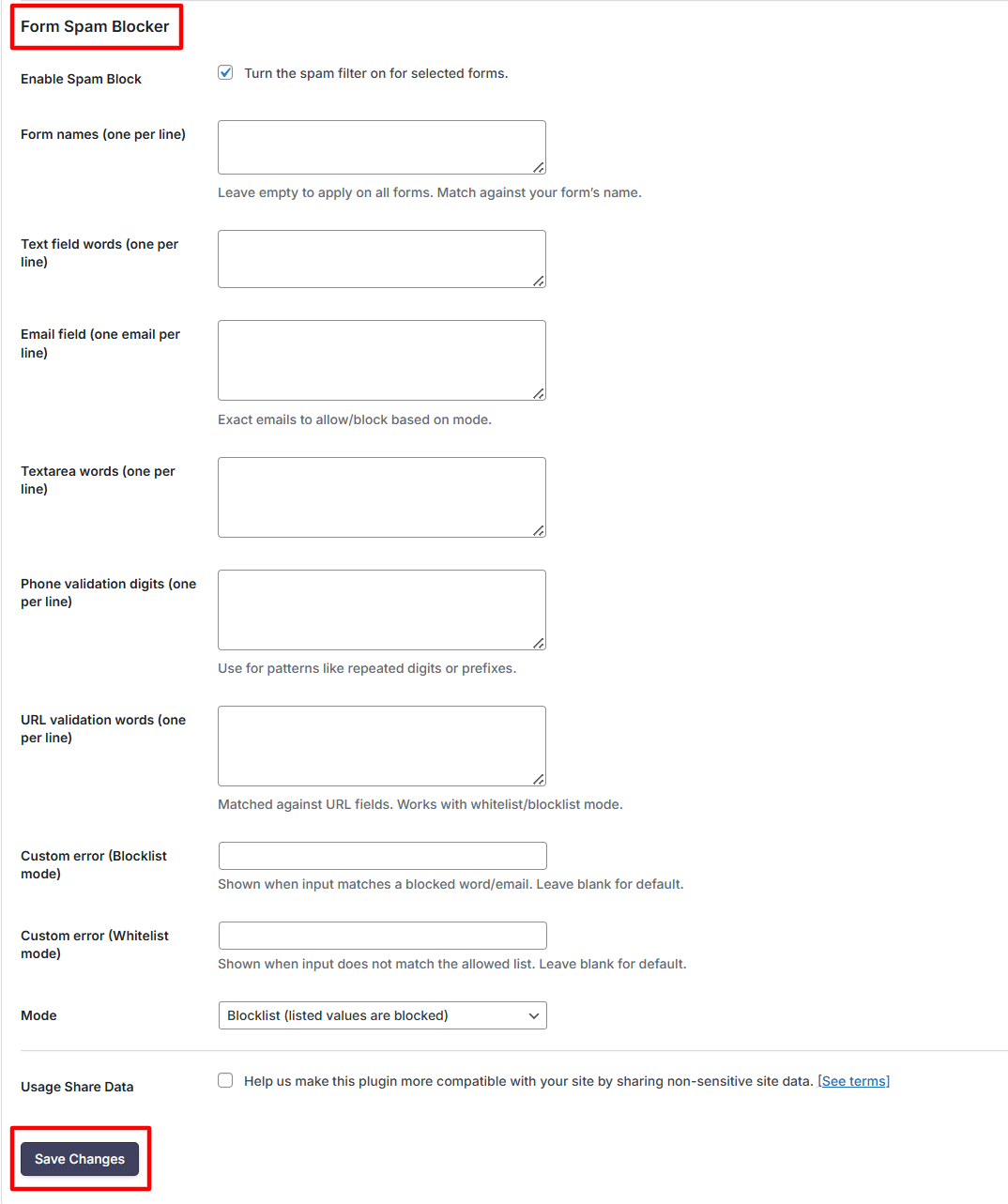
- Enable Spam Block: Turn on the option to activate spam filtering for your forms. Once enabled, the plugin will start checking form submissions based on the rules you define.
- Form Names (one per line): Enter each form name to which you want to apply the spam filter, or leave this field empty to apply the spam filter to all forms automatically.
- Text Field Words (one per line): Add specific words or phrases that you want to block or allow in text input fields based on the selected mode (blocklist or whitelist).
- Email Field (one email per line): Enter email addresses that you want to block or allow based on the selected mode (blocklist or whitelist).
- Textarea Words (one per line): Add words or phrases that you want to block or allow in textarea fields (such as message fields) based on the selected mode.
- Phone Validation Digits (one per line): Enter number patterns, repeated digits, or prefixes to validate phone number inputs and detect spam or invalid entries.
- URL Validation Words (one per line): Add keywords or domains to validate URLs submitted in form fields, based on the selected mode (blocklist or whitelist).
- Custom Error (Blocklist Mode): Enter a custom error message that will be shown when user input matches a blocked value.
- Custom Error (Whitelist Mode): Enter a custom error message that will be displayed when user input does not match the allowed values.
- Mode: Choose the spam filtering mode: Blacklist or Whitelist.
- In Blocklist mode, any value you add will be blocked, meaning if a user enters something that matches your list, the form will not be submitted.
- In Whitelist mode, only the values you add are allowed, and anything else will be rejected.
- Lastly, click the save changes button.
Conclusion
So, if your forms are filled with irrelevant or promotional messages, basic protection like CAPTCHA or a honeypot field is not enough.
Get Cool FormKit today and apply an effective solution to filter out unwanted submissions.
FAQs
How to stop spam in Elementor forms?
To stop spam in Elementor forms, you can use built-in features like honeypot fields and CAPTCHA. However, for better protection, you should use an advanced spam filtering solution like Cool FormKit’s Spam Blocker, which filters spam based on user input such as messages, emails, and URLs.
How to block specific words or links in Elementor form submissions?
With Cool FormKit’s Spam Blocker, you can block specific keywords, phrases, URLs, or domains. This is useful for preventing promotional links, irrelevant messages, or harmful content from being submitted through your forms.
How does spam filtering work in Elementor forms?
Spam filtering works by analyzing the data entered into form fields such as name, email, message, and URLs. It checks for suspicious patterns, blocked keywords, or invalid inputs and prevents the form from being submitted if it matches defined rules.
How to validate phone numbers in Elementor forms?
With Cool FormKit, you can define specific number patterns, repeated digits, or prefixes to validate phone inputs. This helps prevent fake or invalid phone numbers from being submitted.
Why is spam filtering important for Elementor forms?
Spam filtering is important because it protects your website from unwanted submissions, saves time, improves data quality, and prevents security risks caused by malicious inputs.