
Running promotions in a WooCommerce store often means sharing coupon codes and expecting customers to enter them at checkout. In reality, many shoppers either overlook the coupon field or simply forget to apply the code before completing their purchase. When that happens, the promotion you carefully planned may not deliver the results you expected.
That’s where auto-apply coupons and store credits come in. Instead of asking customers to manually enter a coupon code, these discounts are automatically applied when specific conditions are met. For example, a discount can be activated when a customer’s cart value exceeds a certain amount, when they add a particular product, or when they have available store credit in their account.
Store credits work in a similar way but serve a slightly different purpose. They allow you to give customers a balance they can use on future purchases. This is commonly used for refunds, loyalty rewards, or promotional offers, and the credit can be automatically applied during checkout without requiring any additional steps from the customer.
In this guide, we’ll walk you through how to set up auto-apply coupons and store credits in WooCommerce, so you can create a smoother checkout experience, encourage repeat purchases, and make it easier for customers to benefit from your promotions.
What Are Auto-Apply Coupons in WooCommerce?
Auto-apply coupons are discounts that are automatically applied to a customer’s cart when certain conditions are met, without requiring the customer to manually enter a coupon code. Instead of asking shoppers to type or paste a discount code at checkout, WooCommerce can apply the promotion instantly once the predefined discount rules are satisfied.
For example, a store owner might want to offer 10% off orders above $50 or provide free shipping when customers add specific products to their cart. With auto-apply coupons, the discount activates automatically as soon as the cart meets the required conditions. Customers immediately see the discount reflected in their cart totals, making the shopping experience smoother and more transparent.
This approach removes the extra step of entering coupon codes, which many shoppers either miss or forget to apply. As a result, auto-apply coupons help ensure that customers actually receive the promotion you intended to offer.
Some common scenarios where WooCommerce stores use auto-apply coupons include:
- Cart value discounts: Automatically apply a discount when the cart total reaches a certain amount.
- Product-specific promotions: Apply a discount when a particular product or category is added to the cart.
- Seasonal or campaign discounts: Automatically activate a limited-time promotion during sales events.
First-purchase incentives: Provide an automatic discount for new customers.
By removing friction from the checkout process, auto-apply coupons can improve customer experience, increase conversions, and encourage shoppers to complete their purchases without needing to search for or remember coupon codes.
What Are Store Credits in WooCommerce?
Store credits in WooCommerce allow you to give customers a balance that they can use toward future purchases in your store. Instead of issuing a cash refund or a one-time coupon, store credits act like a wallet balance that customers can redeem during checkout.
When a customer has store credit available, the amount can be automatically applied to their order total, reducing the payable amount without requiring them to enter any coupon code. This makes the checkout process easier and ensures customers actually use the credit you’ve given them.
Store credits are commonly used in situations where store owners want to encourage customers to return and make another purchase rather than issuing a direct refund. Since the credit can only be used in your store, it helps retain revenue while still providing value to customers.
For example, if a customer returns a product worth $25, you can issue $25 in store credit instead of processing a refund to their original payment method. The next time they place an order, the credit will automatically reduce the order total.
WooCommerce store owners typically use store credits for several purposes:
- Refunds and returns – Offer store credit instead of issuing a direct monetary refund.
- Customer loyalty rewards – Give repeat customers credits as a reward for their purchases.
- Promotional incentives – Provide store credits during campaigns to encourage future purchases.
- Customer support compensation – Offer credits as a goodwill gesture if customers experience issues.
Because store credits automatically apply during checkout, they help create a seamless shopping experience while also encouraging repeat purchases and long-term customer loyalty.
Why Use a Plugin to Create Auto-Apply Coupons and Store Credits?
WooCommerce includes a built-in coupon system that allows store owners to create discount codes for their customers. However, by default, WooCommerce requires shoppers to manually enter the coupon code during checkout. It also doesn’t provide built-in functionality for automatically applying coupons or managing store credits effectively.
This is where a dedicated coupon plugin becomes useful. With the right plugin, you can automatically apply discounts when specific cart conditions are met and easily issue store credits that customers can redeem on future purchases.
For this tutorial, we’ll be using the WooCommerce Smart Coupons plugin by WebToffee. The plugin extends the default WooCommerce coupon system and allows you to create advanced promotions without complex configurations.
With this plugin, you can:
- Automatically apply coupons when cart conditions are met
- Create store credit coupons that customers can redeem during checkout
- Set up cart-based and product-specific discounts
- Configure advanced WooCommerce coupon conditions and restrictions
- Run promotional campaigns such as BOGO offers and cart discounts
In the next sections, we’ll walk through how to use the Smart Coupons for WooCommerce plugin to create auto-apply coupons and store credit coupons for your WooCommerce store.
How to Set Up Auto-Apply Coupons in WooCommerce?
Follow the steps below to create auto-apply coupons in WooCommerce using the Smart Coupons for WooCommerce plugin. With this feature, the discount will automatically apply to the customer’s cart once the specified conditions are met, so shoppers don’t have to manually enter a coupon code during checkout.
Step 1: Install WebToffee Smart Coupons Plugin
WebToffee Smart Coupons is available in both free and premium versions. The auto-apply coupon feature is included in the free version, while the store credit functionality is available only in the premium version.
In this tutorial, we will be using the premium version of the Smart Coupons plugin to demonstrate how to set up both auto-apply coupons and store credits in WooCommerce.
- After purchasing the Smart Coupons plugin, you will receive an email to download the plugin zip file.
- Download the plugin file, then go to Plugins > Add New from your WordPress dashboard.
- Upload the plugin file, then install and activate the plugin.
Step 2: Create a New Coupon Code
- From your WordPress dashboard, go to Smart Coupons > Add coupon.
- Enter a coupon code and add a short description.
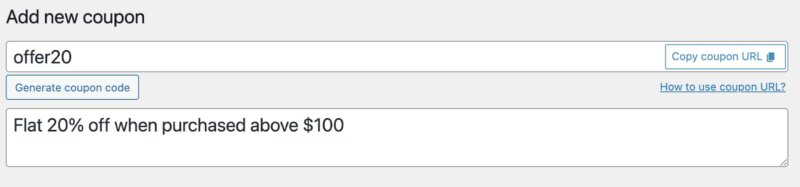
- In the coupon data general settings, choose Percentage discount as the Discount type.
- Enable the Apply coupon automatically checkbox.
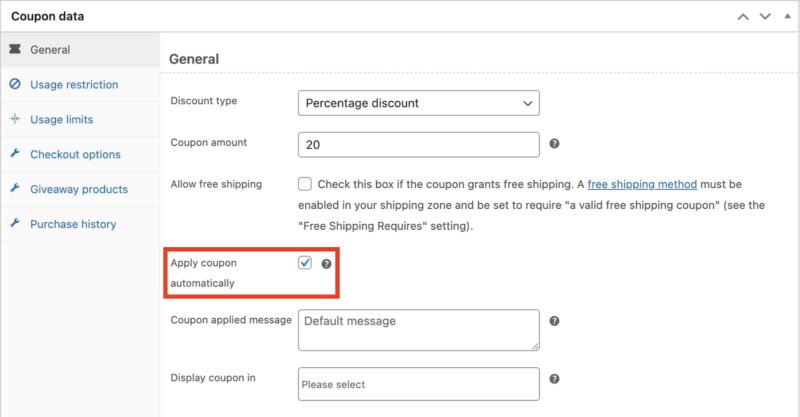
- Leave the rest of the options as is, or you can configure them accordingly.
Step 3: Add Usage Restrictions for WooCommerce Coupons
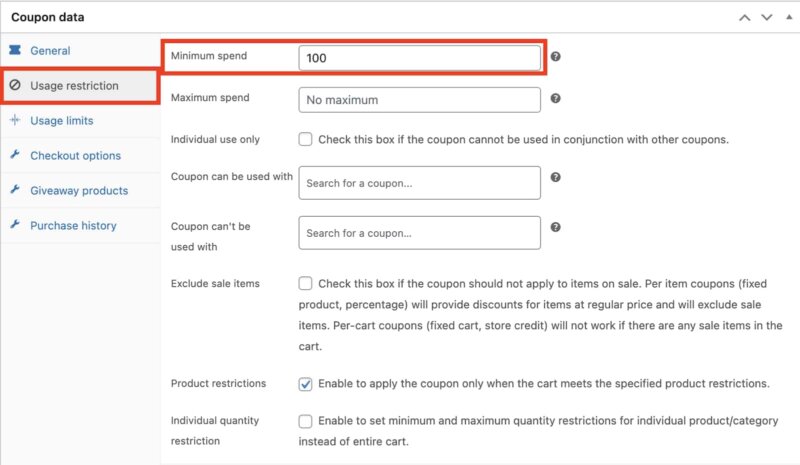
- Next, go to the Usage restriction tab in the Coupon data section. Here, you can define the conditions under which the coupon should be applied.
- For example, enter a value in the Minimum spend field to ensure the coupon is only applied when the cart total reaches a specific amount. In this example, the coupon will automatically apply when the customer’s cart value reaches 100 or more.
- You can also configure other conditions in this section, such as restricting the coupon to specific products, excluding sale items, or limiting how the coupon can be combined with other coupons.
- Adjust these settings based on the promotion you want to run in your WooCommerce store.
- Then publish the coupon.
Step 4: Test the Coupon
After publishing the coupon, it’s a good idea to test it to make sure it works as expected. Open your WooCommerce store in a new browser tab and add products to the cart that meet the conditions you configured earlier.
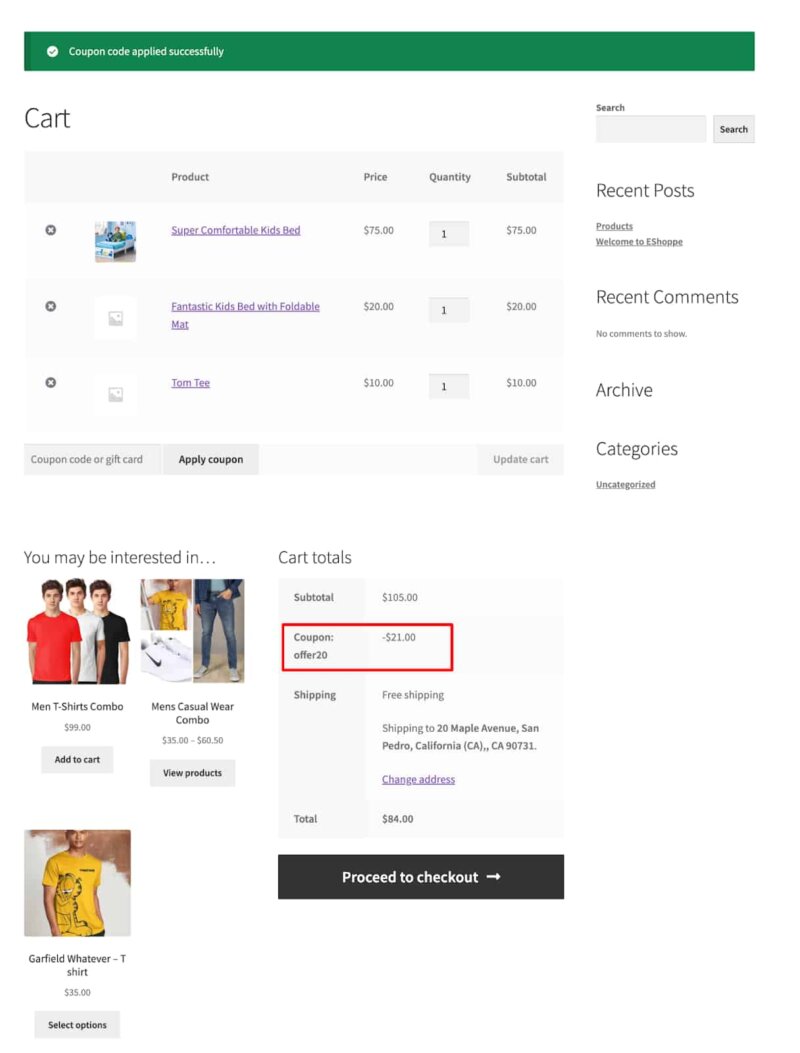
For example, if you set the minimum spend to 100, add items to the cart until the total reaches that amount. Once the cart meets the required conditions, the coupon should automatically apply to the cart without entering the coupon code manually. You should see the discount reflected in the cart totals.
If the coupon does not apply automatically, double-check the coupon settings, such as minimum spend, product restrictions, and the “Apply coupon automatically” option to ensure everything is configured correctly. Testing the coupon helps confirm that customers will receive the discount smoothly during checkout.
Now, let’s see how we can set up store credits in WooCommerce using the Smart Coupons plugin.
How to Set Up Store Credits in WooCommerce?
Step 1: Configure Store Credit Settings
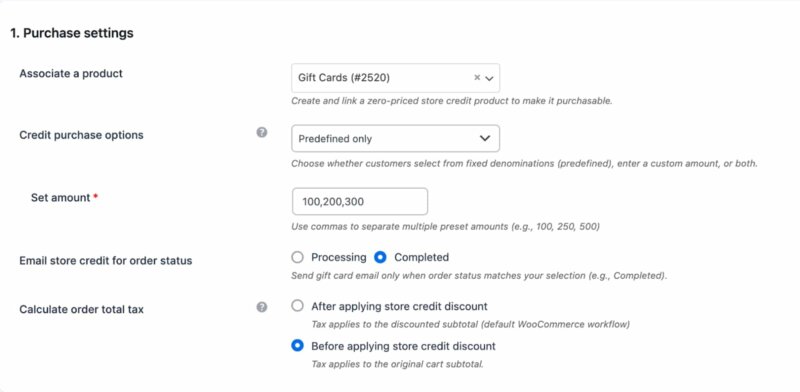
- To start using store credits in WooCommerce, first configure the store credit settings in the Smart Coupons plugin. From your WordPress dashboard, navigate to Smart Coupons > Store Credit and open the General settings tab.
- Here, you can associate a product that will be used to purchase store credits. In the Associate a product field, select the product that will represent store credits in your store. This allows customers to purchase credits just like any other product.
- Next, configure the Credit purchase options. You can allow customers to purchase predefined credit amounts, enter a custom amount, or enable both options. In the Set amount field, enter the predefined credit values separated by commas (for example: 100, 200, 300).
- You can also choose when the store credit email should be sent by selecting the appropriate order status, such as Processing or Completed.
- Finally, configure how taxes should be calculated when store credit is applied to an order.
Step 2: Configure the Coupon Code Prefix and Suffix
- Next, scroll down to the Coupon code format section. Here, you can define how the automatically generated store credit coupon codes will appear.
- In the Prefix field, enter a short text that should appear at the beginning of every generated coupon code. For example, adding wt will ensure all store credit codes start with that prefix. Similarly, you can enter a value in the Suffix field to append characters at the end of the coupon code.
- Using a prefix or suffix helps you easily identify store credit coupons in your WooCommerce store, especially when multiple coupons are being generated.
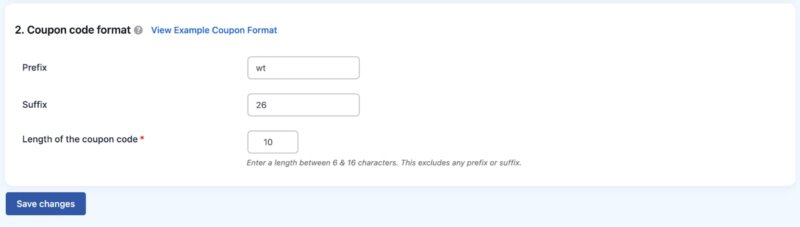
- After configuring the prefix and suffix, specify the Length of the coupon code.
- Once you have configured these settings, click Save changes to apply them.
That’s it! You have successfully created the store credit product on your store.
You can use this store credit product for selling gift cards or add as freebies for a purchase. Now, let’s see how to email store credits.
How to Email Store Credits in WooCommerce?
Step 1: Go to Email Store Credit Option
From your WordPress dashboard, navigate to Smart Coupons > Store Credit > Email store credit
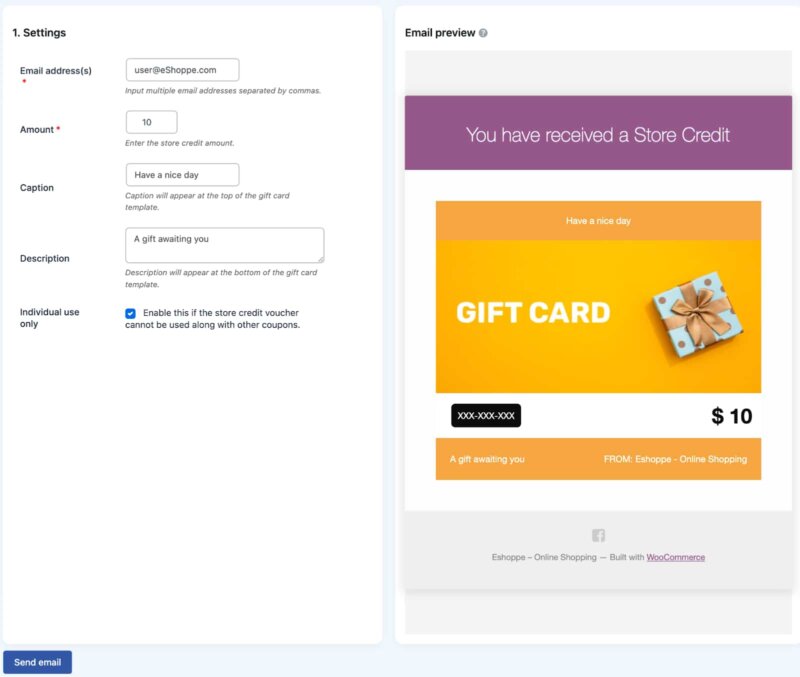
In the Email address(s) field, enter the recipient’s email address. If you want to send store credits to multiple customers at once, you can enter multiple email addresses separated by commas.
Step 2: Enter the Store Credit Amount
Next, specify the store credit value in the Amount field. This determines the balance the customer will receive and be able to use during checkout.
For example, entering 10 will send a $10 store credit to the specified customer.
Step 3: Customize the Store Credit Message
You can personalize the store credit email by adding a Caption and Description.
- The Caption appears at the top of the gift card template.
- The Description appears at the bottom of the email.
This is a good place to add a short message such as a thank-you note, promotion details, or instructions for using the store credit.
Step 4: Send the Store Credit Email
Before sending the credit, review the email preview displayed on the right side of the screen. This preview shows how the store credit email will appear to the recipient, including the coupon code and credit amount.
Once everything looks good, click the Send email button. The customer will receive an email containing their store credit coupon code, which they can apply during checkout to reduce their order total.
Create Advanced Gift Cards and Manage Store Credits in WooCommerce
While the Smart Coupons plugin allows you to create store credit coupons and send them to customers, some stores may require more advanced gift card and credit management features. For example, you may want customers to purchase digital gift cards, track their store credit balances, or issue refunds as store credits directly from orders.
For these use cases, you can use the WebToffee WooCommerce Gift Cards plugin. This plugin is designed specifically for creating and managing digital gift cards and store credit systems in WooCommerce.
With the WooCommerce Gift Cards plugin, you can:
- Create customizable digital gift cards that customers can purchase from your store
- Allow customers to choose gift card amounts or enter custom values
- Email gift cards automatically to recipients with personalized messages
- Manage store credit balances of users
- 20+ free gift card templates
- Issue refunds as store credits directly from WooCommerce orders
- Upload custom gift card templates
This makes it easier to run gift card programs, promotional credit campaigns, and store credit refunds without manually creating coupon codes.
If your WooCommerce store needs a dedicated gift card and store credit management system, the WooCommerce Gift Cards plugin provides a more complete solution for handling digital gift cards and customer credits. WebToffee WooCommerce gift cards plugin is a great alternative to YITH wooCommerce Gift Cards and Pimwick gift cards plugin.
Conclusion
Auto-apply coupons and store credits can significantly improve the shopping experience in your WooCommerce store. Instead of relying on customers to manually enter coupon codes, these features ensure that discounts and credits are applied automatically when the required conditions are met. This not only simplifies the checkout process but also helps customers take full advantage of the promotions you offer.
By using the Smart Coupons for WooCommerce plugin, you can easily create auto-apply coupons, generate store credit products, and send store credits directly to customers. These capabilities make it easier to run targeted promotions, reward loyal customers, and handle refunds in the form of store credits.
If your store requires more advanced features, such as selling digital gift cards, managing customer credit balances, or issuing refunds as store credits, the WebToffee WooCommerce Gift Cards plugin provides a complete solution for gift card and store credit management.
When used effectively, auto-apply coupons, store credits, and gift cards can help you increase conversions, encourage repeat purchases, and build stronger customer loyalty in your WooCommerce store.