Loco Translate is a powerful tool for translating WordPress themes and plugins. However, users often face challenges that affect the quality and efficiency of the translation process.
In this guide, we’ll address the most common issues users face with Loco Translate, explain why they occur, and provide practical solutions to ensure that your translations are displayed correctly and efficiently on the front end.
Loco Translate Not Working? Quick Fix Checklist
If Loco Translate is not translating your WordPress website, work through these checks in order:
| Check | What to do |
|---|---|
| Site language | Go to Settings → General → Site Language and confirm the correct language is selected. |
| Translation template | Open the plugin or theme in Loco Translate and sync the translation template. |
| Text domain | Make sure the translation uses the text domain used by the plugin or theme. |
| Source string | Check that the exact string you want to translate exists in the translation catalog. |
| Translation status | Make sure the string has an actual translation and is not still marked as untranslated. |
| File location | Check where the translation file is stored and make sure it is in a suitable language directory. |
| Cache | Clear WordPress, browser, CDN, page, and server caches where applicable. |
| File permissions | Make sure WordPress can access the translation files. |
| Plugin/theme conflict | Temporarily test with other plugins disabled or with a default theme. |
| JavaScript content | Check whether the untranslated text is generated by JavaScript instead of PHP. |
| Recent update | If the problem started after an update, sync the translation and check whether the source string changed. |
| Migration | If the site was recently migrated, check that the translation files were copied to the new website. |
1. Translations Not Displaying on the Frontend
Detection:
Translations appear correctly in the backend but do not reflect on the live site.
Possible Causes:
- Browser or server caches serve outdated content, which prevents the latest translations of strings from appearing correctly on your website.
- Solution: Clear your browser cache, site cache, and any Content Delivery Network (CDN) caches to ensure the latest translations are displayed.
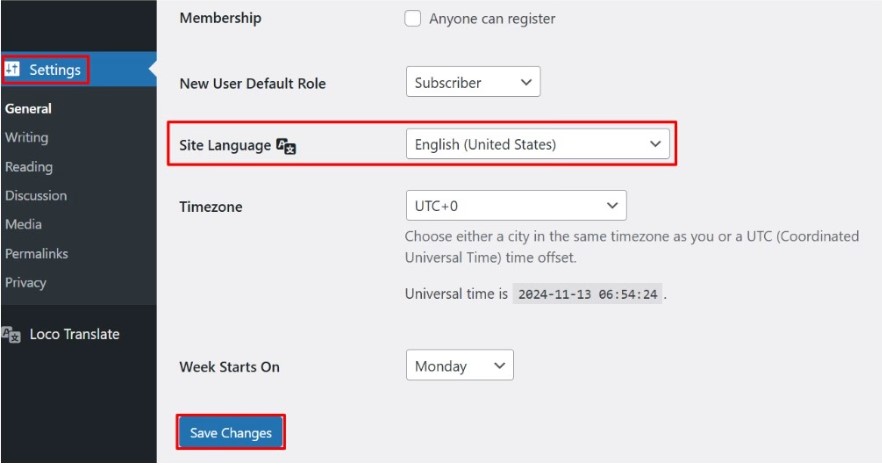
- The site language may not be set to the desired language, because of which untranslated strings or default content are shown.
- Solution: Navigate to Settings → General in your WordPress dashboard and set the ‘Site Language’ to your target language.
- Some themes or plugins load their own translation files or modify strings using hooks or filters because of which they might have overridden the translations.
- Solution: Temporarily deactivate other plugins and switch to a default theme to identify conflicts.
- Updates typically replace all existing files, including any translation files that were manually edited or added, thus updated themes or plugins overwrite translation files stored in their directories, which leads to the loss of custom translations.
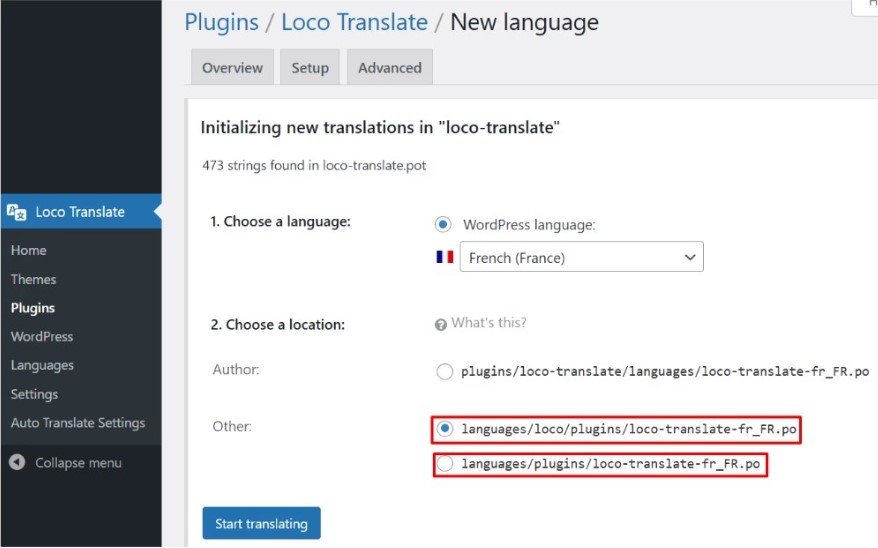
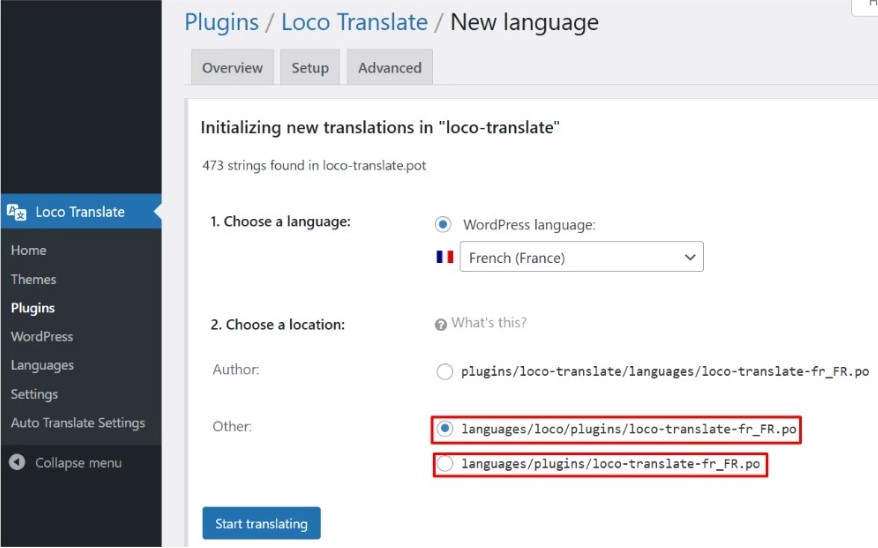
- Solution: Save translations in the languages/loco/plugins or languages/plugins directory to protect them from being overwritten during updates.
2. Missing or Incomplete Translations
Detection:
Certain strings remain untranslated despite being translated in Loco Translate.
Possible Causes:
- Outdated Translation Templates: The .pot file does not include all translatable strings.
- Dynamic or Database-Stored Strings: Some strings are generated dynamically or are stored in the database, making them inaccessible to translation tools like Loco Translate.
- Incorrect Text Domain Usage: Themes or plugins with incorrect text domains, cause translations to fail.
Solution:
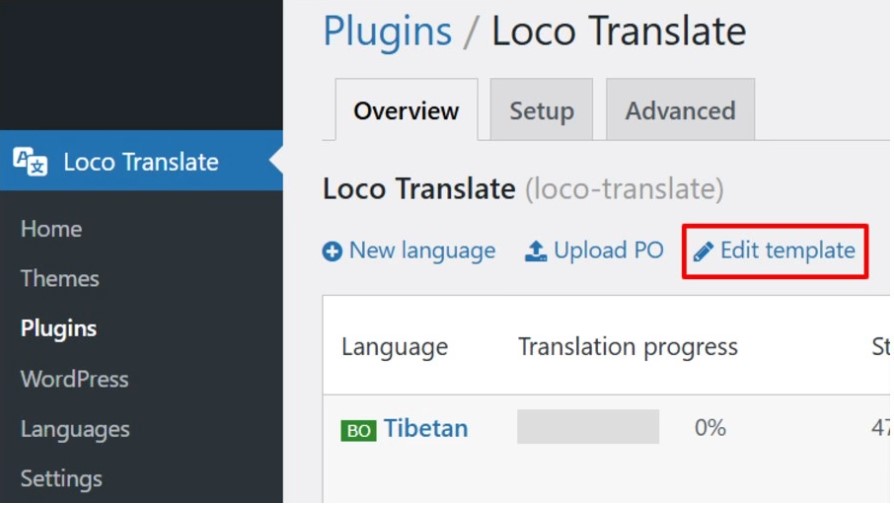
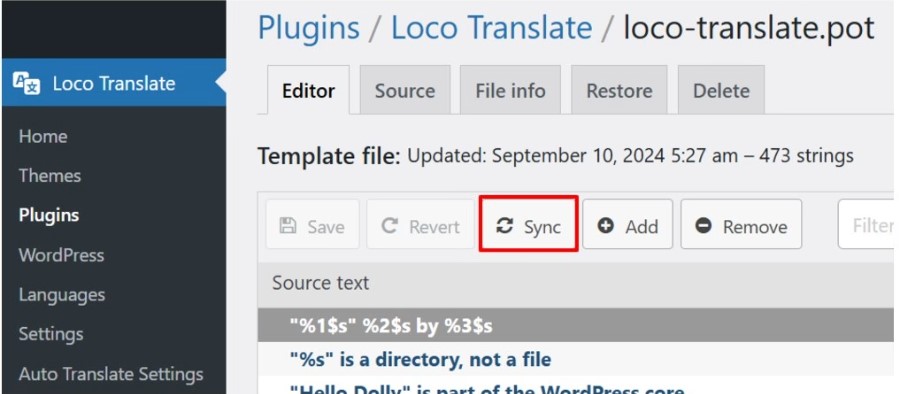
- Use Loco Translate’s ‘Sync’ feature to update the translation template with the latest strings.
- Consult the theme or plugin developer to understand how these strings can be translated.
- Ensure that the text domain in the translation files matches the one used in the theme or plugin code.
3. Errors When Saving or Syncing Files
Detection:
Encountering HTTP errors (e.g., 404 Not Found, 403 Forbidden) during save or sync operations.
Possible Causes:
- Server settings might have blocked certain operations, such as file permissions or script executions, which restrict the translation functionalities.
- Insufficient permissions prevent file modifications, restricting the ability to create, edit, or save translation files. If the translation tool or WordPress itself cannot access or write to the necessary files due to restricted permissions, updates to translations will also fail.
Solution:
- Check server error logs for details and consult your hosting provider to adjust configurations as needed.
- Ensure that the WordPress installation has the necessary permissions to read and write translation files.
4. Memory Limit Exhausted Errors
Detection:
Errors indicate that the allowed memory size has been exhausted, especially during sync operations.
Possible Causes :
- When translation files are large, they require more resources to load and process, which impacts website speed or leads to errors.
Solution: Increase the PHP memory limit by editing the wp-config.php file or by consulting your hosting provider.
5. Specific Strings Not Translating
Detection:
Certain words or phrases remain in the original language despite being translated.
Possible Causes:
- The string in the translation file doesn’t exactly match the one in the code. Even a small difference, such as extra spaces, punctuation, or case sensitivity, causes the translation to fail.
- Some text shown via JavaScript is not translatable through standard methods, as translation tools like Loco Translate typically rely on PHP-generated strings. When text is dynamically generated by JavaScript, it’s often not included in the translation files, meaning it can’t be translated automatically.
Solution:
- Ensure that the source text in the translation file matches the exact string in the code, including punctuation and spacing.
- Check if the theme or plugin properly localizes JavaScript strings and consult the developer for guidance.
6. Translation Files Disappearing After Updates
Detection:
Translations are lost after updating themes or plugins.
Possible Causes:
- Updates overwrite Theme/Plugin directories, leading to a loss of translations, especially if the translation files are stored within the theme or plugin’s folder. When a theme or plugin is updated, its files are replaced with the new version, which removes or overwrites any custom translation files.
Solution: Store translations in the languages/loco/plugins or languages/plugins directory to prevent them from being overwritten during updates.
7. Issues with Translating WooCommerce
Detection:
WooCommerce-specific strings not translating as expected.
Possible Causes:
- Themes are overriding WooCommerce templates, affecting translations, because when a theme customizes WooCommerce templates, it alters or replaces default WooCommerce strings. If the theme’s custom templates do not support the translated strings, it causes the translations to fail or display incorrectly.
Solution: Check if the theme contains its translation files for WooCommerce and ensure they are properly translated.
8. Cross-Site Migration & Portability Issues
Detection:
- Translations created on the staging or development site are missing on the live website.
- Translation settings, custom strings, or language configurations do not transfer automatically between environments.
- After migrating the website, translated content appears incomplete or reverted to default language.
Possible Causes:
- Translation files are often stored inside theme or plugin directories, which may not be included correctly during migration or may get overwritten during updates.
- Many users manually transfer
.poand.mofiles using FTP because WordPress does not provide a built-in system for syncing translations and translation settings between environments. - Incorrect file paths, missing language folders, or inconsistent site language settings across environments can also prevent translations from loading properly.
- In some cases, developers migrate the database but forget to migrate translation files stored separately in the
wp-content/languagesdirectory.
Solution:
- Preserve translations across updates and migration by storing translation files in recommended WordPress language directories such as:
wp-content/languages/pluginswp-content/languages/themeswp-content/languages/loco
- During migration, ensure that both translation files (
.poand.mo), and translation-related settings are included in the backup and deployment process. - Use automated migration or deployment tools instead of manual FTP transfers whenever possible to reduce missing files and configuration errors.
- Additionally, verify that the same site language is configured across all environments, translation file names match the correct locale and text domain, and language folders have proper read/write permissions
By identifying these common issues and applying the corresponding solutions, users can enhance their experience with Loco Translate and ensure accurate translations across their WordPress sites.
For an even more powerful translation experience, consider using the Loco Translate Addon Plugin. It allows you to auto-translate thousands of strings within just a few clicks, saving time and effort. You don’t need any extra API subscriptions for services like Google or Yandex, and you can handle unlimited translations without additional costs. This addon is beneficial for handling large websites or multiple language files.
Why Can’t I Find a String in Loco Translate?
If a string does not appear in Loco Translate, it does not necessarily mean that Loco Translate is broken.
The string may be:
- Hard-coded and not translation-ready.
- Associated with a different text domain.
- Generated dynamically.
- Generated by JavaScript.
- Loaded from a third-party library.
- Stored as database content.
- Added by a theme override.
- Missing from the current translation template.
Try syncing the translation template first. If the string still does not appear, check where the text is generated and which text domain is being used.
For developers, searching the plugin or theme source code for the exact string can help identify how that text is being generated.
Frequently Asked Questions
Why is Loco Translate not translating?
Loco Translate may not translate strings because of an incorrect locale, outdated translation template, wrong text domain, incorrect translation file location, caching, or because the string is not available through WordPress’s translation system.
Why are Loco Translate translations not showing?
If translations are visible in Loco Translate but not on the frontend, check the active WordPress language, text domain, translation file location, cache, and whether the string is generated dynamically.
How do I fix Loco Translate not working in WordPress?
Start by checking your WordPress language, syncing the translation template, verifying the text domain, checking the translation file location, saving the translation, and clearing relevant caches. If the problem continues, check for plugin, theme, or JavaScript-related issues.
Why does Loco Translate lose translations after an update?
An update can add or change source strings, making an existing translation template outdated. Translation files stored inside plugin or theme directories may also be overwritten. Sync the translation template and keep custom translations in a suitable location.
Why can’t I find a string in Loco Translate?
The string may use a different text domain, be missing from the current translation template, be hard-coded, or be generated dynamically with JavaScript or another system. Sync the translation template first and then check how the string is generated.
Why are my Loco Translate translations missing after migration?
Translation files may not have been copied during the migration or deployment. Check the .po and .mo files, language directories, WordPress locale, text domain, file permissions, and deployment process.
Can Loco Translate translate JavaScript strings?
JavaScript-generated strings may require additional translation support from the plugin or theme. If a JavaScript string does not appear in Loco Translate, check how the plugin or theme generates that string and whether it supports JavaScript translations.
Can I automatically translate Loco Translate strings?
Yes. Tools such as LocoAI can help automate the translation of Loco Translate strings with AI, which can be useful when you need to translate a large number of strings. However, the underlying Loco Translate setup should be configured correctly first.