
Elementor Forms make it easy to create contact forms, lead generation forms, registration forms, and many other types of forms without writing any code.
However, if you want to add interest or loan calculator in your form to perform automatic calculations based on user inputs, Elementor lacks a built-in Calculator Field.
A Calculator Field allows your form to instantly calculate values such as product prices, service costs, loan repayments, quotes, discounts, or custom estimates.
So, instead of manually calculating results, users can enter their information and receive accurate calculations in real time, creating a more interactive and user-friendly experience.
This feature is especially useful for businesses that want to build interest calculators, quotation forms, mortgage calculators, loan calculators, cost estimators, and other advanced form solutions directly inside Elementor.
To add calculation functionality to Elementor Forms, you’ll need an addon like Cool FormKit. It extends Elementor Forms with a powerful Calculator Field and 25+ advanced form features that help you create smarter, more dynamic forms without coding.
In this guide, we’ll show you how to add a Calculator Field in Elementor and create custom calculators that improve user engagement and help visitors make faster, more informed decisions.
But before we begin, let’s first understand the basic functionality behind the Calculator Field.
What is a Calculator Field for Elementor Forms?
A Calculator Field is a powerful form field that performs calculations based on users input and displays the result instantly.
A Calculator Field works by taking values from other form fields, applying a predefined formula, and displaying the calculated output within the form. As users modify the input values, the result is recalculated to reflect the latest information.
Imagine visiting a bank’s website that has a built-in loan calculator. You fill in your preferred loan amount, interest rate, and loan term, and within seconds, the calculator field displays your estimated monthly repayment, helping you decide if the loan is affordable before submitting an inquiry.

With a Calculator Field, you can build multiple calculators and instantly calculate BMI, EMI, Interest, SIP returns, and more based on user inputs, saving time for both users and businesses.
Follow the steps below to add the calculator field for Elementor forms.
Step-by-Step Guide to Add an Elementor Calculator Field
- Before getting started, make sure the following plugins are installed and activated on your WordPress website:
- After installing all the plugins, make sure you have enabled the Calculator Field feature in the WordPress Admin Panel >> Elementor >> Cool FormKit >> Form Elements Tab.

- Create a new form or edit an existing one with Elementor where you want to add the calculator field.
- Navigate to the Content section of your Form Field.
- From the Field Type dropdown, select Calculator Field.
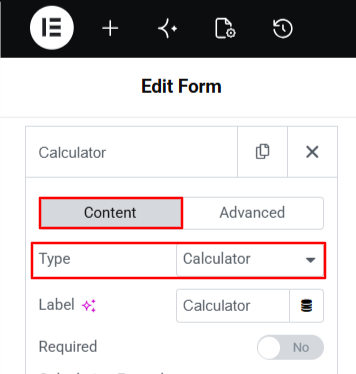
- Once you’ve selected the Calculator field, you can customize its behavior and appearance using the following options:
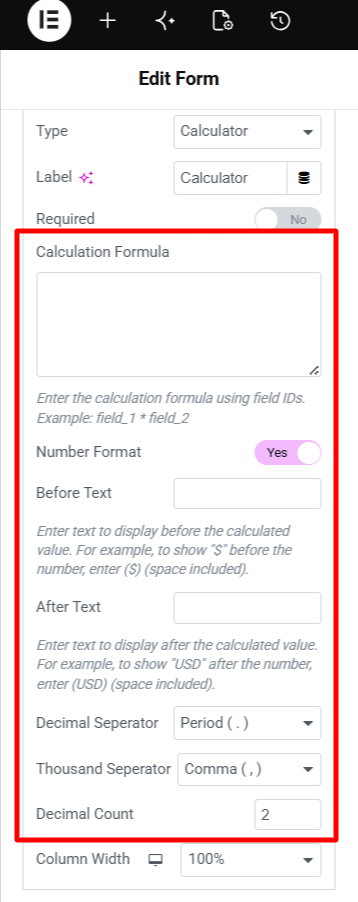
- Calculator Formula: Enter a formula using your form field IDs. For example: [field1] * [field2] + [field3]
- Before Text: Add a prefix that appears before the calculated value, such as a currency symbol like $ or €.
- After Text: Add a suffix or unit after the calculated value, for example, “USD” or “per month.”
- Decimal Separator: Select a decimal separator either a period (.) or a comma (,) based on your requirement.
- Thousand Separator: Choose the symbol to separate thousands in large numbers either a period (.) or a comma (,) based on your requirement.
- Decimal Count: Specify how many digits should be shown after the decimal separator.
- Click Update or Publish at the bottom of the Elementor panel. View the live page to test the calculator field and make sure everything functions perfectly.
That’s it! By following these simple steps, you can successfully create a Calculator Field in your Elementor Form.
Calculation Formulas
Here are some commonly used formulas that you can use with the Calculator Field.
| BMI Calculation Formula: | ([gender][weight]/([height][height])*10000) |
| Percentage Calculation Formula: | ([number]*[percentage]/100) |
| Body Fat Percentage Calculation Formula: | (1.20[weight]/([height][height]0.0001)+(0.23[age])-[gender]) |
| Interest or Loan Calculation Formula: | Math.floor([loan_amount]([interest_rate]/100)/12/(1-Math.pow(1+([interest_rate]/100)/12,-([loan_term]12)))) |
Conclusion
By adding a Calculator Field to Elementor Forms, you can offer visitors a faster and more convenient way to receive estimates, prices, scores, and other calculated values instantly. It helps simplify calculations and improves the overall user experience.
Whether you want an Elementor price calculator, an Elementor cost calculator, or an Elementor quote calculator, a calculator field can improve user experience and help visitors make informed decisions.
With Cool FormKit, you can easily add an Elementor form calculator and create customized calculators tailored to your website’s needs.
FAQs
What is a Calculator Field in Elementor?
A calculator field in Elementor is a form field that automatically performs calculations based on values entered by users and displays the result instantly within the form. It can be used to create pricing calculators, loan estimators, BMI calculators, percentage calculators, and other interactive tools.
Does Elementor have a built-in Calculator Field?
No, Elementor does not include a built-in Calculator Field. To add calculation functionality to Elementor Forms, you need to use an additional addon such as Cool FormKit.
How do I build a calculator in Elementor?
To build a calculator in Elementor, you need to add a calculator field to Elementor Forms using an addon like Cool FormKit. Simply create an Elementor Form, add the necessary input fields, insert a Calculator Field, and define a formula using the field IDs. Once configured, the calculator will automatically display updated results whenever users change an input value.
What types of calculators can I create using a Calculator Field?
A Calculator Field can be used to create a variety of interactive calculators in Elementor Forms, like BMI calculators, EMI calculators, SIP calculators, interest calculators, pricing calculators, percentage calculators, loan estimators, quotation forms, and cost calculators. By defining custom formulas, you can build calculators that provide instant and personalized results, helping users quickly estimate values and make informed decisions.
Can I perform calculations automatically in Elementor Forms?
Yes, you can. Calculations can be performed automatically by using a Calculator Field. The calculated result updates instantly whenever users modify the input values in the form.
Can I customize how calculated values are displayed?
Yes, you can customize the display of calculated values by adding prefixes and suffixes, choosing decimal and thousand separators, and setting the number of decimal places.