If your WordPress website has visitors from different countries, showing content in their preferred language can make a big difference. Polylang is a popular WordPress plugin that helps you create and manage a multilingual website.
However, Polylang on its own does not provide an easy way to add a language switcher inside Elementor layouts. This is where Connect Polylang for Elementor comes in. It bridges the gap between Polylang and Elementor, allowing you to add and control language switchers visually.
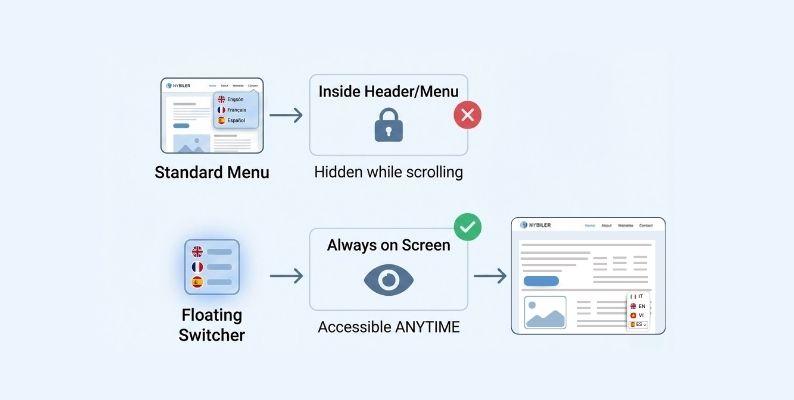
One common challenge users face is deciding where to place the language switcher. Adding the switcher inside the header or menu is not always the best option. Many users struggle to place it properly or match it with their website design. It can make the layout messy or require extra design work. That’s where a floating language switcher becomes useful.
In this guide, you’ll learn how to add a floating language switcher in WordPress using Polylang with Connect Polylang for Elementor.
Why Use a Floating Language Switcher?
A floating language switcher stays visible on your website without taking up space in your header or layout. It “floats” on the screen, making it easy for visitors to change the language anytime.
Add Floating Language Switcher
Follow the steps below to enable and configure the floating language switcher:
- From your WordPress Dashboard, navigate to Languages > Connect Polylang > Floating Language Switcher.
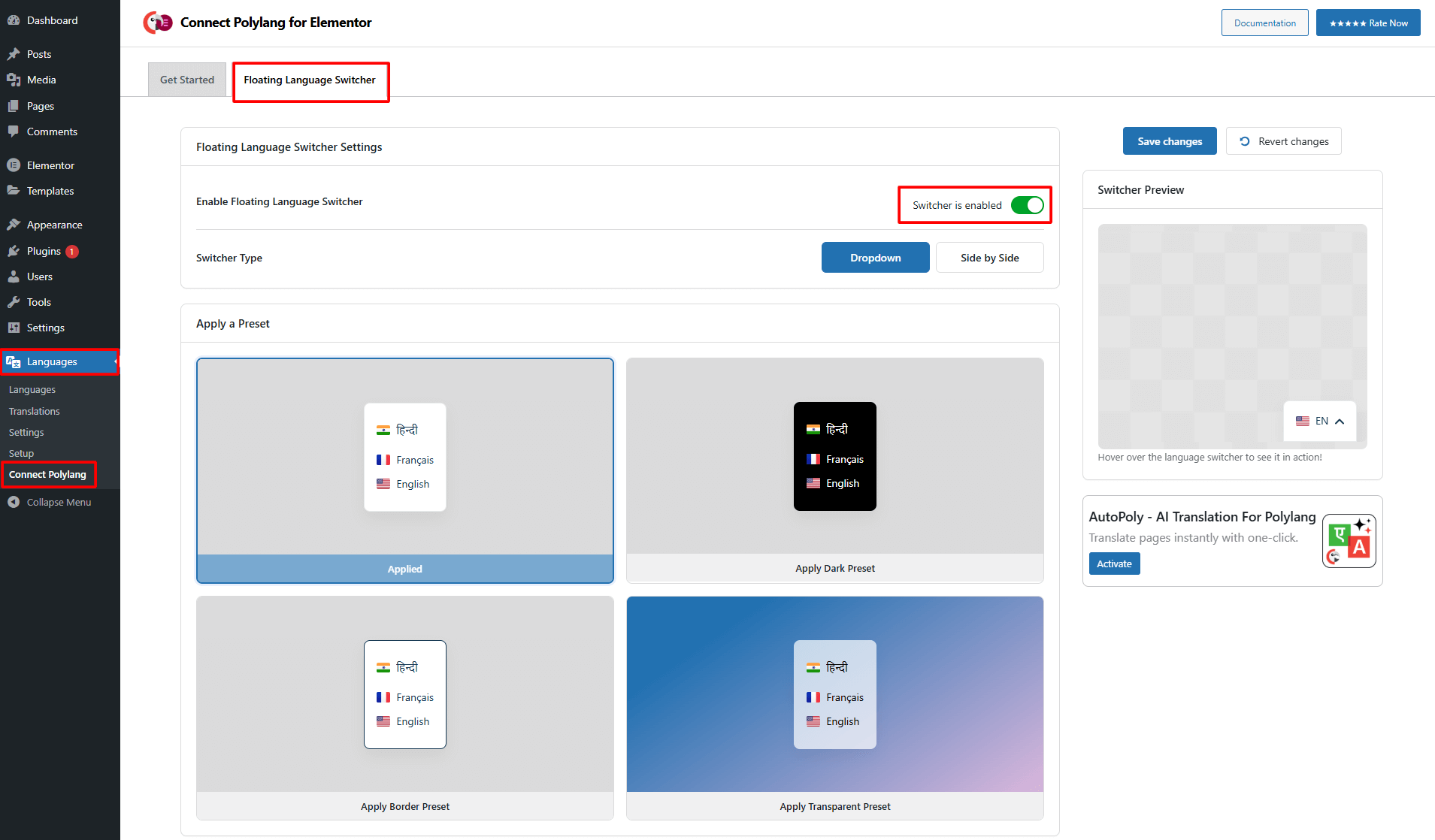
- Enable the Floating Language Switcher. Once enabled, the switcher will appear on the front end of your website.
- Switcher Type: Choose the type of floating switcher from the dropdown or side by side.
- Apply a Preset Style: Choose any one style for the floating language switcher.
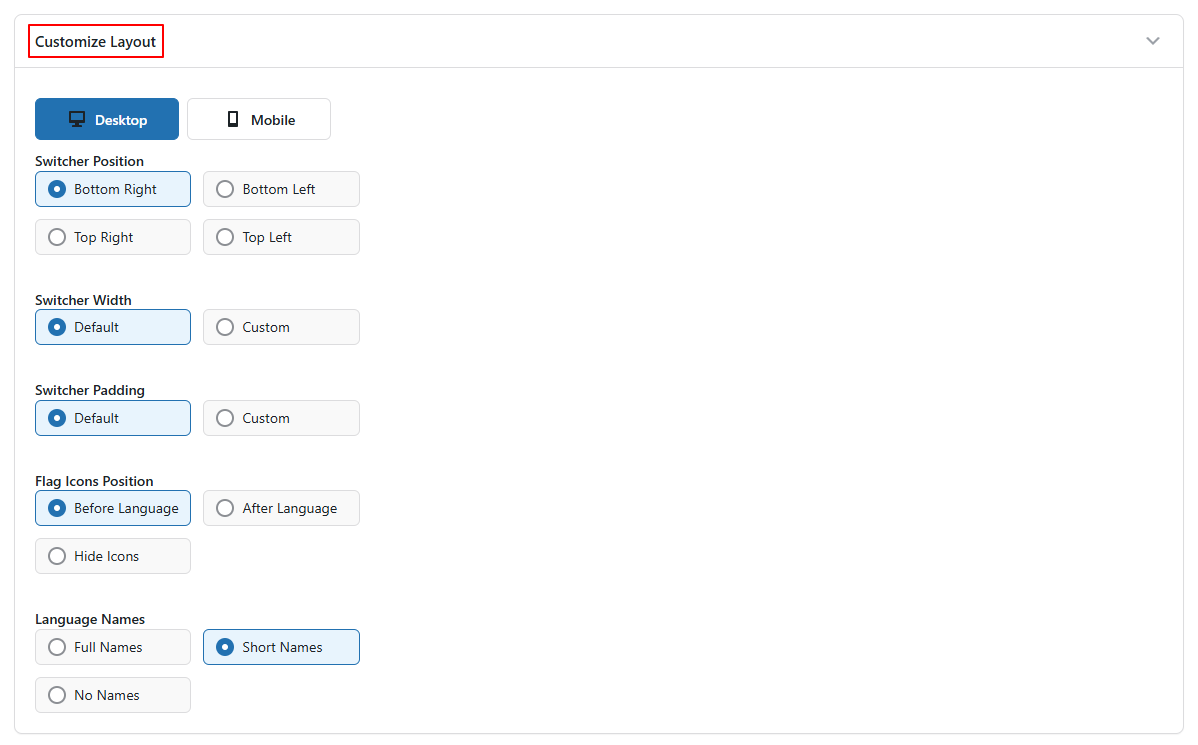
- Customize Layout: Customize the layout of the floating language switcher using following settings:
- Flag Icon Position: Choose whether you want a flag icon before language, after language, or want to hide icons.
- Language Names: Choose whether you want to display full language names, short names, or none.
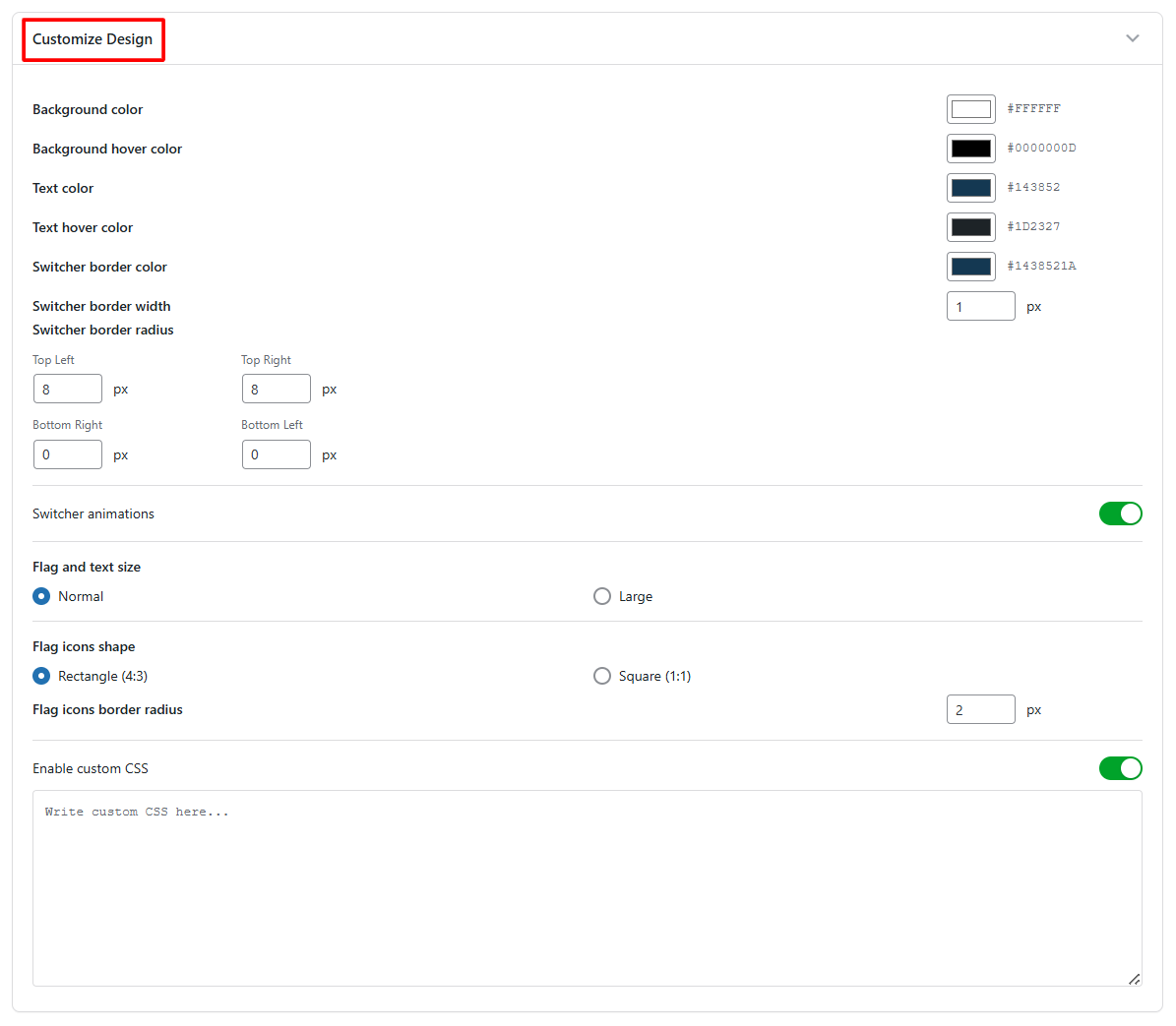
- Customize Design: Customize the appearance of the floating switcher by adjusting background color, text color, text hover color, border color, width, radius, and more.
- After satisfied, click Save Changes, your floating language switcher will be live.
Conclusion
Adding a floating language switcher in WordPress using Polylang is a simple and effective way to improve user experience on a multilingual website. So, if you want an easy-to-use language switcher, the floating option is a great choice.