
A multilingual WordPress website is no longer optional; it’s essential for both user experience and SEO. Think about your website visitors, they come from different countries, speak different languages, and expect websites to feel familiar. When someone lands on your site and cannot understand the language, they usually leave within seconds. That means lost traffic, lost trust, and lost growth.
Similarly, search engines also care about language. Localized content helps your site appear in region-specific searches. A single-language website limits user engagement and increases bounce rates.
Making it multilingual is the solution, but here’s the problem.
Most of the solutions offer translating a website manually, which is slow, tiring, and costly.
In this guide, we are going to discuss 2026 best method for translating your WordPress website automatically.
Best Method to Translate a WordPress Website
The easiest and most practical option today is AI translation plugin. Linguator is one such plugin. It focuses on making translation simple, faster, and accurate.

To be specific, Linguator is a free and powerful multilingual plugin that helps you create and manage multilingual content on your WordPress website. Easily translate your posts, pages, menus, and categories into different languages using AI.
Translate a WordPress Website Using Linguator (Step-by-Step)
Step 1: Install & Activate Linguator
- Log in to your WordPress dashboard, navigate to Plugins > Add New.
- Search for “Linguator”.
- Click Install, then Activate.
Once activated, the plugin will appear in your dashboard menu, here you can access Linguator settings.
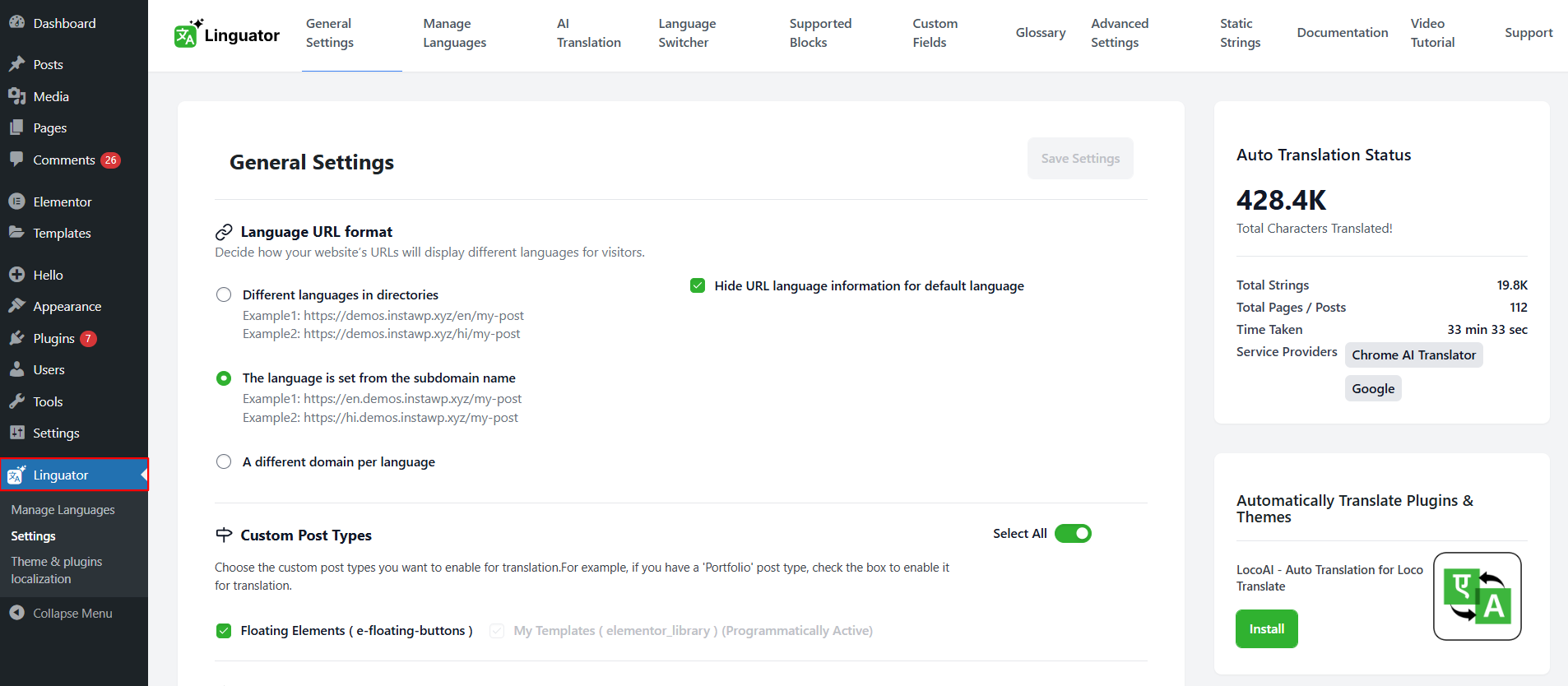
Step 2: Use the Setup Wizard
Right after activation, a simple Setup Wizard will open.
The wizard helps you quickly set up the basic translation settings for your website, such as choosing your main language, adding other languages, enabling automatic translation, and more. Once the setup is complete, your site is ready to be translated.
Step 3: Automatic Bulk Translation
Once your languages are set up, you can start translating content. With Linguator, you can automatically translate: Pages & posts, Categories & Tags, all at once.
This means you don’t have to open each page manually; you can select groups of items and translate them all at once.
Step 4: Translate Elementor or Gutenberg Content
If you use a page builder like Elementor or the default Gutenberg editor, Linguator works inside those editors. It helps you translate complex layouts, including sections, widgets, and blocks, without breaking the design.
Step 5: Translate Menus and Media
Using Linguator, you can easily translate menu labels, image titles, alt text, and descriptions.
Step 6: Add a Language Switcher
Once your translations are ready, you can easily add a language switcher to your site, allowing visitors to easily change the language of your website.
Overall, creating a multilingual website no longer needs technical skills or expensive tools. You can translate a WordPress website for free using AI-powered solutions that are fast, simple, and beginner-friendly.