CoolTunnel 2.0.0
Documentation
Everything needed to share local Windows development sites with temporary public preview links.
Overview #
CoolTunnel is a free Windows desktop utility that starts Cloudflare Quick Tunnels for local websites. It supports Local, Laragon, XAMPP, WampServer, WordPress, custom localhost ports, virtual hosts and subfolder sites.
The app runs cloudflared locally, reads the generated public address and gives you controls to copy, open and stop it. For WordPress, optional reversible compatibility changes prevent internal links from returning visitors to the local hostname.
Requirements #
- Windows 10 or Windows 11, 64-bit.
- A local website already running in Local, Laragon, XAMPP, WampServer or another local web server.
- Internet access for the Cloudflare Quick Tunnel connection.
- Write permission to the WordPress folder only when applying the optional WordPress fix.
CoolTunnel bundles the official cloudflared.exe. You may select another compatible binary from Settings if required.
Install and upgrade #
New installation
- Download CoolTunnel-Setup-2.0.0.exe from the official GitHub release.
- Optionally compare its SHA-256 value with the accompanying checksum file.
- Run the installer and choose the installation folder.
- Open CoolTunnel from the Start menu or desktop shortcut.
Upgrade from Local to Cloud 1.x
Install CoolTunnel normally. It retains the legacy NSIS upgrade identity and migrates compatible data from old application-data directories. Profiles, settings, scan folders, theme preferences and the last local URL are preserved.
Quick start #
- Start the local site and confirm it opens in your browser.
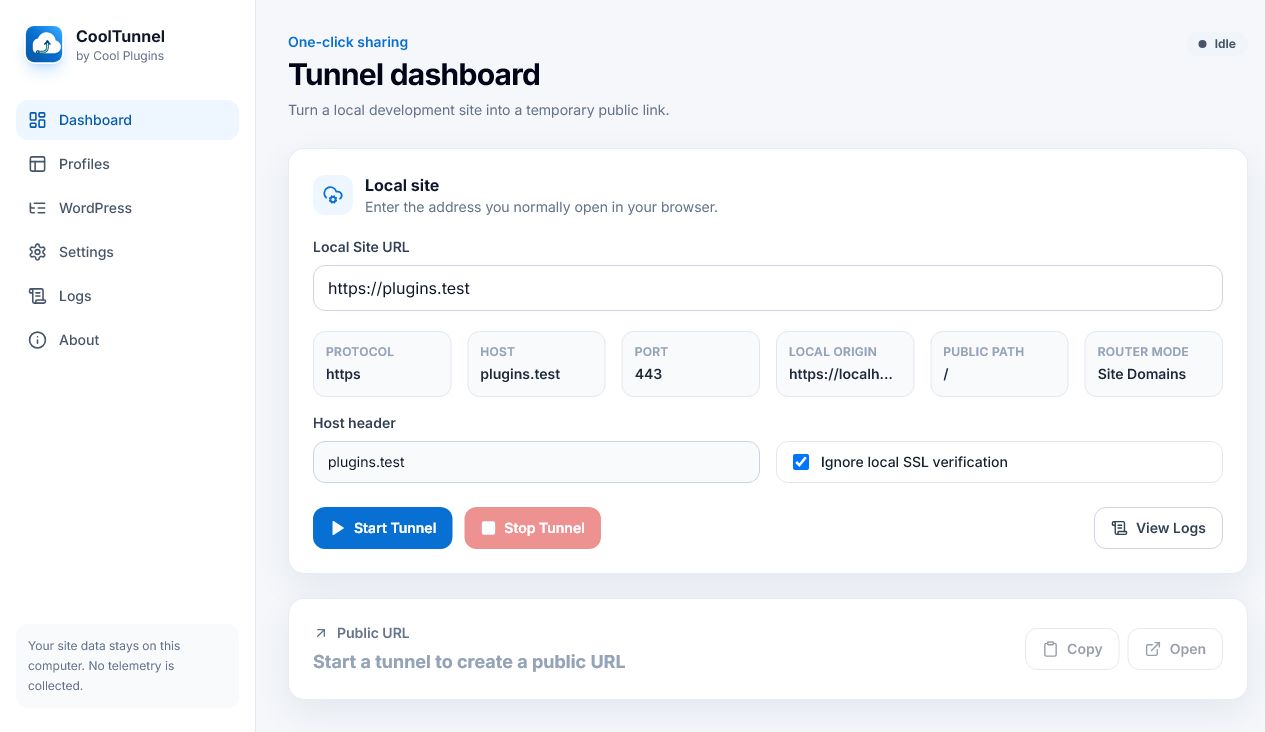
- Enter that same address on the CoolTunnel Dashboard.
- If it is WordPress, select its folder and apply the recommended compatibility fix.
- Select the router mode suggested by CoolTunnel. Keep Automatic unless troubleshooting.
- Choose Start tunnel.
- Wait for the public
trycloudflare.comaddress, then copy or open it. - Choose Stop tunnel when the preview is finished.
Only one Quick Tunnel runs at a time. Starting a second tunnel is blocked until the current one stops.
Supported local URLs #
| Local address | How CoolTunnel treats it |
|---|---|
cool-plugins.local | Adds http:// and preserves the virtual host. |
https://cool-plugins.local/ | Uses HTTPS and disables upstream certificate verification for local self-signed certificates by default. |
localhost:50043 | Tunnels the explicit port. |
localhost/sitename | Tunnels the local server root and appends /sitename to the public link. |
127.0.0.1:8080 | Preserves the loopback host and custom port. |
Only HTTP and HTTPS inputs are accepted. Query strings and fragments are not used as tunnel origins.
Site profiles #
Profiles save a site name, local URL, WordPress folder, source type, SSL preference, public path and fix preferences. Favorite profiles appear first and can start a tunnel with one click.
Sharing profile packs
Exported JSON packs are versioned and validated during import. Local filesystem paths are excluded by default. Enable Include local paths only when every recipient should receive those machine-specific locations.
When names conflict, the import preview lets you skip or overwrite. Unknown fields are not imported.
Local / LocalWP #
CoolTunnel detects the standard %USERPROFILE%\Local Sites folder and Local's WordPress layout at:
<site-name>\app\public
You can select the site folder, its app folder or the final app\public folder. CoolTunnel resolves the WordPress root automatically.
Site Domains router mode
For addresses such as http://cool-plugins.local, CoolTunnel uses a private loopback proxy that preserves the local host information upstream while presenting the public tunnel hostname to WordPress.
Localhost router mode
For addresses such as http://localhost:10005, choose Localhost mode when Local exposes a working localhost port. If that address does not open locally, use the working Site Domain address instead.
Laragon, XAMPP and WampServer #
Default scan roots include common folders such as:
C:\laragon\www
C:\xampp\htdocs
C:\wamp64\www
Add alternate drives or custom server roots in Settings. For a Laragon virtual host such as project.test, use the domain that already opens locally. For a subfolder site, use localhost/project.
WordPress compatibility #
WordPress often generates absolute URLs from its configured local address. Without a compatibility layer, menus, media, canonical URLs, redirects and wp-admin may point back to the local hostname.
CoolTunnel can add a marked block to wp-config.php, install a managed must-use plugin at wp-content\mu-plugins\cooltunnel.php, and optionally add a marked wp-admin rule to .htaccess.
// BEGIN COOLTUNNEL WORDPRESS FIX
// managed configuration
// END COOLTUNNEL WORDPRESS FIX
The generated public path is respected. A local site at localhost/sitename receives WordPress public URLs ending in /sitename.
Legacy compatibility
CoolTunnel recognizes managed Local to Cloud 1.x markers and local-to-cloud-tunnel.php. They can be replaced or removed safely during migration.
Backups and removal #
Before editing an existing WordPress file, CoolTunnel creates a timestamped backup beside it. Original line endings are preserved and edits are restricted to the selected WordPress folder.
- Only marked CoolTunnel or recognized legacy blocks are replaced or removed.
- Removal does not search-and-delete unrelated PHP or Apache rules.
- Managed fixes can remain after stopping a tunnel, or be removed automatically according to your preference.
Updates #
Installed release builds check the stable GitHub release channel shortly after launch and every six hours. CoolTunnel never silently installs an update.
- An available version and release notes are shown on the About page.
- You choose when to download it.
- Progress is displayed in the app.
- You choose Install and restart.
Release metadata includes an installer blockmap, latest.yml and checksum. Production releases are intended to be signed by Cool Plugins LLP.
Diagnostic bundle #
The About page can export a ZIP containing sanitized settings, app and operating-system versions, tunnel state, recent session logs and scan results.
By default it redacts usernames, home directories, WordPress folders, tokens and configured executable paths. Select Include local filesystem paths only when you deliberately want those paths included for support.
Troubleshooting #
The public link opens but internal links return to the local domain
Confirm the correct WordPress folder is selected, reapply the CoolTunnel WordPress fix, and verify the managed MU plugin exists. Then stop and restart the tunnel so the current public hostname reaches WordPress.
A Local Site Domain works, but its localhost port does not
Use the working Site Domain URL and Automatic or Site Domain router mode. A Localhost router address must open directly on your own computer before CoolTunnel can tunnel it.
The tunnel never receives a public URL
Open Logs and look for a cloudflared connection error. Check internet access, firewall restrictions, endpoint security and whether another cloudflared process is already running.
The app opens with an empty window
Install the newest release. If the issue remains, export or locate the startup error log under the CoolTunnel application-data directory and send it through the CoolTunnel support page.
WordPress wp-admin redirects incorrectly
Apply the optional wp-admin redirect rule and confirm the public path matches the site path exactly once.
Privacy and security #
- No CoolTunnel account.
- No telemetry, advertising SDK or behavioral analytics.
- Settings and profiles are stored locally in your Windows user-data directory.
- Session logs remain in memory unless you explicitly export a diagnostic bundle.
- The compatibility proxy binds to
127.0.0.1, not the public network. - The Electron renderer does not receive direct Node.js access.
Traffic sent through a Quick Tunnel necessarily passes through Cloudflare's tunnel service. Review the dedicated CoolTunnel Privacy Notice for scope and third-party processing.
Uninstall #
- Stop any active tunnel.
- Remove managed WordPress fixes from the Sites page if you do not want them retained.
- Open Windows Settings → Apps → Installed apps.
- Select CoolTunnel and choose Uninstall.
Application profiles and settings may remain in %APPDATA%\CoolTunnel to support reinstalling or upgrading. Delete that folder manually only if you also want to erase local CoolTunnel preferences.
Developers and source #
CoolTunnel is MIT licensed. Source, issue tracking and tagged releases are hosted at github.com/CoolPluginsTeam/cooltunnel.
npm install
npm run dev
npm run test
npm run typecheck
npm run build
npm run package:win
Public tagged builds use Windows CI, download the official cloudflared binary, validate branding and release metadata, and require signing secrets before production publication.
Frequently asked questions #
Can I use my own custom domain?
Version 2.0.0 focuses on temporary Quick Tunnels. Named Cloudflare Tunnels, accounts and custom domains are not part of this release.
Can teammates access my computer?
Only the web service exposed through the active tunnel is reachable through the temporary link. Stop the tunnel when sharing is complete and never expose sensitive local admin tools.
Does CoolTunnel edit the WordPress database?
No. Its WordPress compatibility system uses reversible file-based configuration and a managed MU plugin.
Where should I report a problem?
Use the CoolTunnel support page or open a GitHub issue. Include the app version, local server type and a redacted diagnostic bundle where useful.