---
title: "Create Custom Validation Rules for WooCommerce Form"
url: https://coolplugins.net/create-custom-validation-rules-for-woocommerce-form/
date: 2021-09-23
modified: 2026-05-29
author: "Satinder Singh"
description: "WooCommerce custom validation rules help website owners control checkout form inputs using hooks, actions, and PHP functions. Developers can validate names, phone numbers, and website URLs using functions like ctype_alpha, preg_match, and filter_var. JavaScript validation highlights incorrect checkout fields instantly, improving user experience and reducing invalid form submissions effectively. WooCommerce default validation rules can also be removed or customized using the woocommerce_checkout_fields filter hook."
categories:
- "WooCommerce"
image: https://coolplugins.net/wp-content/uploads/2025/04/custom-woocommerce-form-fimg-800x450.png
word_count: 780
---
# Create Custom Validation Rules for WooCommerce Form
As the title suggests, in this article we will create Custom Validation Rules for [WooCommerce ](http://woocommerce.com/)Form.
It is easy to make your own custom validation rules in Woo Commerce using action/hooks. We can add the action/hook function and apply the custom validation condition with some rules.
**Function used:**
- preg_match()
- is_numeric()
- filter_var()
#### Adding Custom Validation Rules to Woo Commerce Checkout form
Let's add some of our own validation rules to some fields of the checkout page with the help of an example.
**Example 1 : Apply custom validation on First and Last name**
In this example we are going to demonstrate our own custom validation rules on the first and the last name field of the woocommerce form.
We can use the *woocommerce_after_checkout_validation* hook to add the custom function for validation. The condition here is when this field contains any number instead of alphabets it shows an error message.
**Look at the code below**:
PHPadd_action( 'woocommerce_after_checkout_validation', 'cp_validate_fname_lname', 10, 2);
function cp_validate_fname_lname( $fields, $errors ){
if ( !ctype_alpha($fields[ 'billing_first_name' ]) || !ctype_alpha($fields[ 'billing_last_name' ]) ){
$errors->add( 'validation', 'First Name and Last Name should only be letters.' );
}
}
```
add_action( 'woocommerce_after_checkout_validation', 'cp_validate_fname_lname', 10, 2);
function cp_validate_fname_lname( $fields, $errors ){
if ( !ctype_alpha($fields[ 'billing_first_name' ]) || !ctype_alpha($fields[ 'billing_last_name' ]) ){
$errors->add( 'validation', 'First Name and Last Name should only be letters.' );
}
}
```
```
```
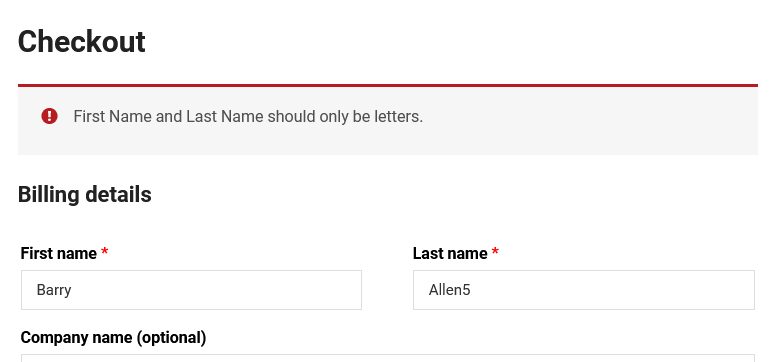
The above code will check for the presence of any number in the field, and the ***ctype_alpha() function ***will check the field for only string letters. If any of the conditions holds false results it will show an error.
Look at the below image for a better understanding.
- First of all add the below code to your functions.php file.
- With this code the WooCommerce-invalid class will be added to parent wrapper (.form-row class) of input field.
- This Class will change the highlighted color to red if fields have any errors in it.
**Example Code:**
PHPadd_action( 'wp_footer', 'cp_javascript_validation' );
function cp_javascript_validation(){
if( !is_checkout() )
return;
?>
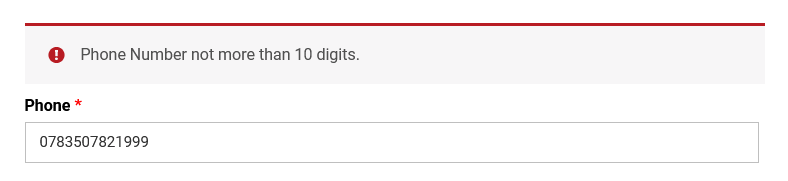
add( 'validation', 'Phone Number not more than 10 digits.' );
}
}
```
add_action( 'woocommerce_after_checkout_validation', 'cp_validate_phone', 10, 2);
function cp_validate_phone( $fields, $errors ){
if(!preg_match('/^[0-9]{10}+$/', $fields[ 'billing_phone' ]))
$errors->add( 'validation', 'Phone Number not more than 10 digits.' );
}
}
```
**Example 4: Custom Rules on Website URL field**
If you have a custom field in woocommerce you can easily validate it for anything, here we are validating the URL.
We can easily validate this by using the ***use_filter_var()*** PHP function.
**Syntax: **
PHPfilter_var()
```
filter_var()
```
**Parameters: **
- $url
- FILTER_VALIDATE_URL
**Example Code:**
PHPadd_action( 'woocommerce_after_checkout_validation', 'cp_validate_url', 10, 2);
function cp_validate_url( $fields, $errors ){
if ( filter_var( $fields[ 'billing_url' ], FILTER_VALIDATE_URL ) == false ) {
$errors->add( 'validation', 'Please provide valid URL.' );
}
}
```
add_action( 'woocommerce_after_checkout_validation', 'cp_validate_url', 10, 2);
function cp_validate_url( $fields, $errors ){
if ( filter_var( $fields[ 'billing_url' ], FILTER_VALIDATE_URL ) == false ) {
$errors->add( 'validation', 'Please provide valid URL.' );
}
}
```
```
```
After applying the validation rules if you have entered a wrong URL, there will be an error as shown in the image below.
**Example 5: How to remove Default validation rules**
To remove the default checkout field validation rules hit the filter hook function. Use the ***woocommerce_checkout_fields*** hook to remove it.
**Example code:**
PHPadd_filter( 'woocommerce_checkout_fields', 'ybc_remove_default_validation' );
function ybc_remove_default_validation( $fields ){
unset( $fields['billing']['billing_postcode']['validate'] );
unset( $fields['billing']['billing_email']['validate'] );
return $fields;
}
```
add_filter( 'woocommerce_checkout_fields', 'ybc_remove_default_validation' );
function ybc_remove_default_validation( $fields ){
unset( $fields['billing']['billing_postcode']['validate'] );
unset( $fields['billing']['billing_email']['validate'] );
return $fields;
}
```
```
```
This is the way by which you can remove the default validation rules, here we have removed the default rules for the billing fields Postcode and Email.